
vocotv iptv streaming
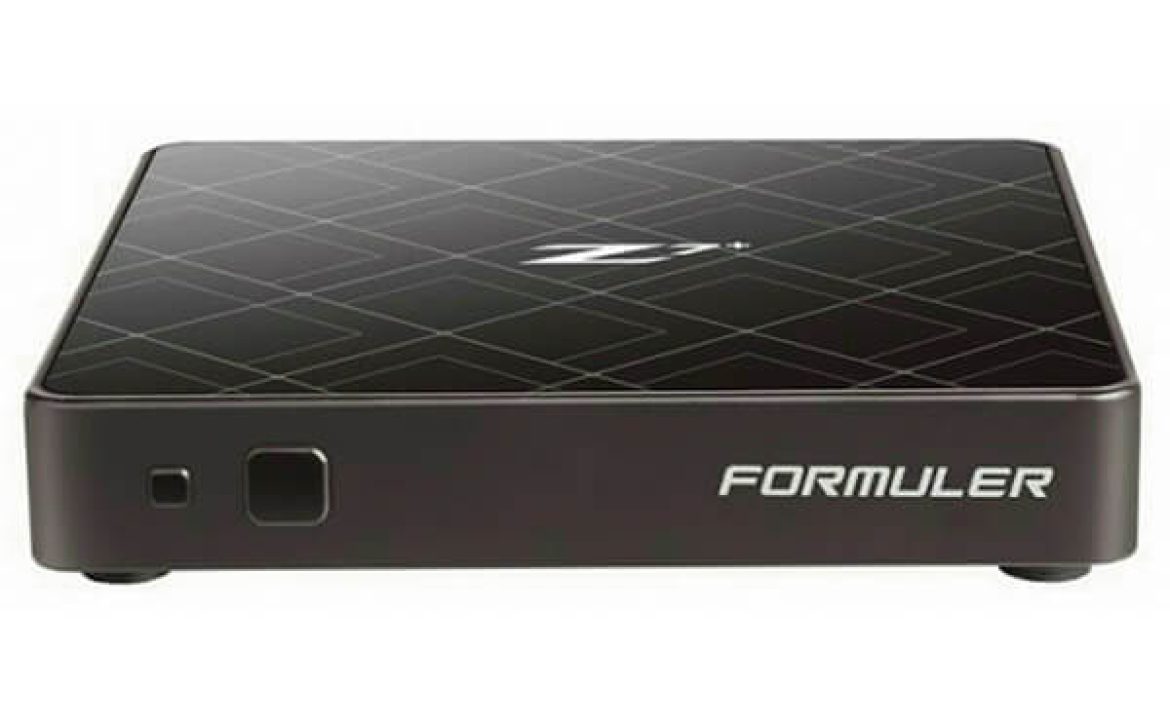
Formuler IPTV 2026 – How to Install VocoTV on MYTVOnline 3, MYTVOnline 2 and Formuler Boxes
Formuler IPTV setup is different from Firestick, MAG, Dreamlink, Smart TV, iPhone or normal Android phone setup. Formuler boxes are built around the MYTVOnline app, which is made for IPTV portal, Xtream Codes and M3U playlist connections. That means the main setup should be done inside MYTVOnline first, not by starting with random APK apps.
This VocoTV tutorial explains how to install Formuler IPTV on Formuler Z11 Pro Max, Formuler Z11 Pro, Formuler Z10 Pro Max, Formuler Z10, Formuler Z8, Formuler Z7, Formuler Z Mini, Z Alpha and other Formuler devices. It covers MYTVOnline 3, MYTVOnline 2, MYTVOnline 1, MAC-ID portal setup, Xtream Codes API, M3U playlist setup, EPG, VOD, catch-up, buffering fixes, cache clearing, software updates and Android app fallback.
The focus keyphrase for this article is Formuler IPTV. This is a real Formuler tutorial, not a generic IPTV article. The main VocoTV method is MYTVOnline. VOCO TV MATE, IBO Player and VocoTV OTT App are included only as fallback options because Formuler boxes are Android-based, but MYTVOnline should be tested first.
Important: never publish your VocoTV portal URL, MAC ID, username, password, M3U link, server URL or Xtream Codes details. Formuler IPTV access is private and should be used only inside your own MYTVOnline app or trusted VocoTV app after your free trial or subscription is active.

Best VocoTV Setup Method by Formuler Device
Formuler models use different MYTVOnline versions. The setup path changes depending on whether your box has MYTVOnline 1, MYTVOnline 2 or MYTVOnline 3.
| Formuler device | Main app | Best VocoTV method | Menu path |
|---|---|---|---|
| Formuler Z11 Pro Max / Z11 Pro | MYTVOnline 3 | MAC-ID, XC or M3U through Content Sources | Content Manager → Content Sources |
| Formuler Z Mini | MYTVOnline 3 | XC or M3U, portal if supported by your account | Content Manager → Content Sources |
| Formuler Z10 / Z10 Pro / Z10 Pro Max | MYTVOnline 2 | Portal, XC or M3U through Connections | Menu → Connections |
| Formuler Z8 / Z Alpha / Z+ Neo | MYTVOnline 2 | Add Portal or M3U playlist | Menu → Connections |
| Older Formuler Z / Z7 / Z7+ | MYTVOnline 1 | Portal or playlist if supported | Menu → Portals |
| Any Android-based Formuler box | MYTVOnline first, APK fallback second | VOCO TV MATE, IBO Player or VocoTV OTT only as fallback | Android app install only if needed |
Live VocoTV Links for Formuler IPTV Setup
Use these live VocoTV pages for Formuler IPTV setup, free trial, subscription, troubleshooting, account access and policies. These are live VocoTV internal links, not guessed sitemap links.
- VocoTV Official Website
- VocoTV IPTV Installation Guide
- VocoTV IPTV Free Trial
- VocoTV IPTV Subscription Plans
- VocoTV IPTV FAQ
- VocoTV Troubleshooting Guide
- VocoTV IPTV Reseller Program
- VocoTV IPTV Affiliate Program
- VocoTV Login
- VocoTV Sign Up
- VocoTV Refund Policy
- VocoTV Privacy Policy
Before You Install Formuler IPTV
Before entering VocoTV details into MYTVOnline, prepare the correct login type. Formuler supports multiple connection types, and choosing the wrong one is the most common reason setup fails.
- A Formuler box connected to your TV by HDMI.
- Stable internet connection, preferably Ethernet or strong 5 GHz Wi-Fi.
- MYTVOnline 3, MYTVOnline 2 or MYTVOnline 1 installed on the device.
- Your VocoTV free trial or subscription active.
- Your VocoTV portal URL if using MAC-ID portal setup.
- Your VocoTV username, password and server URL if using XC / Xtream Codes API.
- Your VocoTV M3U playlist and EPG XML URL if using M3U setup.
- Your Formuler MAC-ID if VocoTV needs MAC-based activation.
If you do not have active access yet, start with VocoTV IPTV Free Trial. After testing, compare plans on VocoTV IPTV Subscription Plans.
Choose the Correct Formuler IPTV Connection Type
Formuler IPTV setup can use three main connection types. Pick the method that matches the VocoTV details you receive.
| Connection type | What you enter | Best for | Notes |
|---|---|---|---|
| MAC-ID / Portal | Portal URL only, plus MAC-ID activation if required | Classic STB-style setup | Give VocoTV the correct Formuler MAC-ID if support asks for it |
| XC / Xtream Codes API | Server URL, username and password | Clean Live TV, Movies, Series and EPG login | Often easier than long M3U links |
| M3U Playlist | M3U playlist URL and optional EPG XML URL | Playlist-based setup and app fallback | Never share the private M3U link publicly |
Method 1: Formuler IPTV on MYTVOnline 3
Use this method for Formuler Z11 Pro Max, Z11 Pro, Z Mini and other devices running MYTVOnline 3. This is the best method for newer Formuler boxes.
Step 1: Open MYTVOnline 3
- Turn on the Formuler box.
- Connect to internet with Ethernet or strong Wi-Fi.
- Open MYTVOnline 3.
- Go to Content Manager.
- Open Content Sources.
Step 2: Add a VocoTV source
- Select Add or Add Content Source.
- Choose the VocoTV connection type: MAC-ID, XC or M3U.
- Enter source name: VocoTV.
- Enter the VocoTV details exactly as supplied.
- Save the source.
- Connect and wait for Live TV, VOD, series and EPG to load.
If VocoTV gives you a portal/MAC setup, use MAC-ID. If VocoTV gives you server URL, username and password, use XC. If VocoTV gives you a playlist link, use M3U.
Method 2: Formuler IPTV on MYTVOnline 2
Use this method for Formuler Z10, Z10 Pro Max, Z8, Z Alpha, Z+ Neo and other MYTVOnline 2 devices. MYTVOnline 2 usually uses Menu → Connections.
Step 1: Open Connections
- Open MYTVOnline 2.
- Press Menu on the Formuler remote.
- Go to Connections.
- Select Add Portal, Add XC or Add Playlist, depending on your VocoTV account type.
Step 2: Add Portal for MAC-ID setup
- Select Add Portal.
- Enter portal nickname: VocoTV.
- Enter the private VocoTV portal URL exactly.
- Check the MAC-ID shown on the screen if VocoTV needs MAC activation.
- Save and connect.
For MAC-ID portal setup, VocoTV may need the Formuler MAC-ID that starts with 00:1A. Do not send the wrong Android Wi-Fi MAC if VocoTV asks specifically for the MYTVOnline MAC-ID.

Method 3: Formuler IPTV with MAC-ID Portal
MAC-ID portal setup is similar to MAG-style setup, but inside MYTVOnline. Use this when VocoTV gives you a portal URL and asks for a Formuler MAC-ID.
- Open MYTVOnline.
- Open the correct menu: Portals, Connections or Content Sources.
- Choose MAC-ID or Add Portal.
- Write down the MAC-ID shown by MYTVOnline if activation is needed.
- Send the correct MAC-ID to VocoTV support if requested.
- Enter source or portal name: VocoTV.
- Enter the VocoTV portal URL exactly.
- Save and connect.
Do not guess the portal URL. Do not use a random portal URL from another website. Use only the private portal URL supplied to your VocoTV account.

Method 4: Formuler IPTV with XC / Xtream Codes API
XC login is often the cleanest option when VocoTV provides server URL, username and password. It can load Live TV, Movies, Series and EPG in a better structure than a raw playlist.
- Open MYTVOnline.
- Open Content Sources, Connections or Portals depending on the MYTVOnline version.
- Choose XC, Xtream Codes API or similar option.
- Enter name: VocoTV.
- Enter VocoTV server URL.
- Enter VocoTV username.
- Enter VocoTV password.
- Save and connect.
- Wait for Live TV, Movies, Series and EPG to load.
If you receive an error, check the server URL, port, username and password. One extra space can break the login.
Method 5: Formuler IPTV with M3U Playlist
M3U setup is useful when VocoTV provides a private playlist URL. MYTVOnline can support playlist setup depending on model and version.
- Open MYTVOnline.
- Choose Add Playlist, M3U or similar option.
- Enter playlist name: VocoTV.
- Paste your private VocoTV M3U playlist URL.
- Add EPG XML URL if VocoTV provides it separately.
- Save and connect.
- Wait for categories, EPG and VOD to load.
Never publish your M3U URL. A private M3U link can include account access details.

Android App Fallback for Formuler Boxes
Formuler boxes are Android-based, so some users may install Android apps as backup. This is not the main Formuler IPTV method. Use MYTVOnline first. Use Android apps only if you need a second player or VocoTV support asks you to test another app.
VOCO TV MATE App
Use VOCO TV MATE first if you need VocoTV Android app fallback on a Formuler box.
- Best for: Android-based Formuler boxes, Android TV Box, Android TV, Google TV and Firestick-style devices.
- Download Link: http://aftv.news/2695252
- Downloader Code: 2695252
- Login: private VocoTV username and password.
IBO Player
Use IBO Player if you want MAC Address and Device Key activation as an Android app fallback.
- Download Link: http://aftv.news/407498
- Downloader Code: 528993
- Activation Website: https://iboplayer.pro
VocoTV OTT App
Use VocoTV OTT App as a backup VocoTV Android player if MYTVOnline or VOCO TV MATE is not ideal.
- Download Link: http://aftv.news/274303
- Downloader Code: 274303
- Login: private VocoTV username and password.
Extra Formuler IPTV Apps for Advanced Users
MYTVOnline should be the main Formuler IPTV player. However, because Formuler boxes run Android, advanced users can test extra apps when needed.
- TiviMate: good for advanced EPG, favorites and playlist control.
- Kodi: useful for advanced media-center users.
- VLC: useful for quick private M3U testing.
- IBO Player: useful when you prefer MAC and Device Key activation.
Do not install random cracked IPTV apps. Use trusted sources and keep VocoTV account details private.
Ethernet vs Wi-Fi for Formuler IPTV
Formuler boxes usually work best with stable internet. Ethernet is preferred for live sports and high-bitrate streams. Wi-Fi can work, but weak Wi-Fi is one of the biggest causes of buffering.
- Use Ethernet if the Formuler box is close to the router.
- Use 5 GHz Wi-Fi if Ethernet is not possible.
- Avoid weak 2.4 GHz Wi-Fi for sports and HD streams.
- Restart the router before testing.
- Restart the Formuler box after changing network settings.
- Test speed with Speedtest and Fast.com.
What to Test After Formuler IPTV Setup
After VocoTV connects inside MYTVOnline, test the full service before choosing a long plan.
- Open Live TV categories.
- Test sports during busy hours.
- Open Movies and VOD.
- Open Series and several episodes.
- Check if EPG loads correctly.
- Check channel zapping speed.
- Create a few favorites.
- Restart MYTVOnline and confirm the source reconnects.
- Restart the Formuler box and confirm VocoTV still loads.
- Test Ethernet if Wi-Fi buffers.

Formuler IPTV Troubleshooting
MYTVOnline cannot connect
- Check if your VocoTV trial or subscription is active.
- Check the portal URL, server URL, username and password.
- Remove spaces before and after login details.
- Confirm you selected the correct connection type: MAC-ID, XC or M3U.
- Restart MYTVOnline.
- Restart the Formuler box.
- Use the VocoTV Troubleshooting Guide.
Wrong MAC-ID or portal not authorized
- Open MYTVOnline and check the MAC-ID shown in the app.
- Use the MAC-ID requested by VocoTV support.
- Do not send a random Android Wi-Fi MAC unless support requests it.
- Ask VocoTV support to refresh or activate the correct Formuler MAC-ID.
- Restart the box after activation.
XC login error
- Check the server URL and port.
- Check username and password exactly.
- Use the correct connection type: XC / Xtream Codes API.
- Do not paste a full M3U link into the server URL field.
- Try M3U setup only if VocoTV gives you M3U details.
M3U playlist does not load
- Check if the full M3U URL was copied correctly.
- Do not break the URL across lines.
- Check if your account is active.
- Add EPG XML URL separately if your app requires it.
- Try XC login if VocoTV gives server URL, username and password.
EPG or guide is wrong
- Refresh portal or content source.
- Check EPG mode or UTC setting if available.
- Check time zone on the Formuler box.
- Restart MYTVOnline after changing guide settings.
- Contact support if channels work but guide never appears.
Buffering on Formuler IPTV
- Use Ethernet instead of Wi-Fi.
- Restart router and Formuler box.
- Clear MYTVOnline cache.
- Free storage on the Formuler box.
- Test another source type if VocoTV gives multiple options.
- Check speed with Speedtest or Fast.com.

Clear Cache and Refresh VocoTV on MYTVOnline
If MYTVOnline becomes slow or categories do not update, refresh the source and clear cache.
- Open Formuler settings or app settings.
- Find MYTVOnline app settings.
- Clear cache, not data, unless you want to remove login details.
- Open MYTVOnline again.
- Refresh the content source, portal or playlist.
- Restart the box if categories still do not update.
Update Formuler Software and MYTVOnline
Software updates can fix playback bugs, remote issues, guide problems and app stability. Keep your Formuler box updated.
- Go to the Formuler home screen.
- Open Software Update or Update app.
- Check for system firmware update.
- Check for MYTVOnline update.
- Install updates if available.
- Restart the box after updating.
Formuler IPTV Safety and Privacy
Formuler IPTV setup uses private service data. Keep VocoTV login details private.
- Never post your VocoTV portal URL publicly.
- Never share your VocoTV username or password.
- Never publish your M3U playlist link.
- Never post screenshots showing MAC-ID, server URL or login details.
- Do not use leaked portal lists.
- Do not install cracked IPTV apps.
- Do not clone MAC addresses.
- Use MYTVOnline first because it is the native Formuler IPTV app.
- Read the VocoTV Refund Policy.
- Read the VocoTV Privacy Policy.
Formuler IPTV FAQ
What is Formuler IPTV?
Formuler IPTV means watching IPTV on a Formuler box using MYTVOnline 1, MYTVOnline 2 or MYTVOnline 3 with MAC-ID portal, XC login or M3U playlist setup.
What is the best VocoTV method for Formuler?
The best method is MYTVOnline. Use MYTVOnline 3 on Formuler Z11 and Z Mini, MYTVOnline 2 on Z10 and Z8-style boxes, and MYTVOnline 1 on older devices.
Should I use VOCO TV MATE first on Formuler?
No. On Formuler, use MYTVOnline first. VOCO TV MATE is a fallback Android app only if you need another player or support asks you to test it.
What is the MYTVOnline 3 setup path?
For MYTVOnline 3, use Content Manager → Content Sources, then add VocoTV as MAC-ID, XC or M3U depending on your account details.
What is the MYTVOnline 2 setup path?
For MYTVOnline 2, use Menu → Connections, then add VocoTV as Portal, XC or M3U.
What is MAC-ID setup?
MAC-ID setup uses a Formuler MAC-ID and a VocoTV portal URL. VocoTV may need to activate the MAC-ID before the portal connects.
What is XC setup?
XC, also called Xtream Codes API, uses server URL, username and password. It is often clean for Live TV, Movies, Series and EPG.
What is M3U setup?
M3U setup uses a private playlist URL and sometimes a separate EPG XML URL. Never share the private M3U link publicly.
Why does Formuler say portal not connecting?
The common reasons are wrong portal URL, inactive account, wrong MAC-ID, wrong connection type, internet issue or missing provider activation.
Why is Formuler IPTV buffering?
Buffering can come from weak Wi-Fi, old router, full cache, low storage, overloaded network, VPN speed or live-event traffic. Use Ethernet, clear cache and restart router.
Can I use TiviMate on Formuler?
Yes, because Formuler boxes are Android-based, but MYTVOnline should be the first choice. Use TiviMate only when you need another interface or advanced playlist control.
Should I buy a long VocoTV plan before testing Formuler?
No. Start with VocoTV IPTV Free Trial, connect VocoTV in MYTVOnline, test live TV, sports, VOD and EPG, then choose a plan after everything works well.
More VocoTV Pages
- VocoTV Home
- VocoTV IPTV Installation Guide
- VocoTV IPTV Free Trial
- VocoTV IPTV Subscription Plans
- VocoTV IPTV FAQ
- VocoTV Troubleshooting Guide
- VocoTV Reseller Program
- VocoTV Affiliate Program
- VocoTV Login
- VocoTV Sign Up
- VocoTV Refund Policy
- VocoTV Privacy Policy
External Formuler and IPTV Resources
- Formuler Helpdesk: MYTVOnline MAC-ID, XC and M3U Setup
- Formuler Helpdesk: Portal URL and Service Information
- Formuler MYTVOnline 3
- Formuler Z11 Pro Max
- Formuler Z10 Pro Max
- Formuler Z Mini
- TiviMate Official Website
- VLC Media Player
- Kodi for Android
- Speedtest
- Fast.com
Conclusion
Formuler IPTV setup with VocoTV should start with MYTVOnline. Use MYTVOnline 3 on newer Formuler boxes through Content Manager → Content Sources. Use MYTVOnline 2 through Menu → Connections. Use MYTVOnline 1 through Menu → Portals. Choose MAC-ID, XC or M3U based on the VocoTV details you receive.
The best route is simple: start with VocoTV IPTV Free Trial, add VocoTV in MYTVOnline, test live TV, sports, VOD and EPG, fix issues with VocoTV Troubleshooting Guide, then choose a plan from VocoTV IPTV Subscription Plans.

This is a useful post for finding broken links within the website, what about links pointing outwards that are broken? I can use a free web service but wondered if this was possible.
Great tool! I am using a redirect plugin to send all my 404’s to my home page but I think it’s slacking sometimes.