Category: voco tv iptv tips news

<p data-start="416" data-end="524">Voco TV IPTV tips news brings the latest updates, guides, and expert advice to improve your IPTV experience.</p> <p data-start="526" data-end="675">Discover streaming tips, performance fixes, and IPTV news to enhance speed, reduce buffering, and stay updated with VocoTV features and improvements.</p>
IPTV-Players-CI
broadband for iptvOnline IPTVUSA IPTVvoco tv iptv tips newsvoco tv iptv tutorialsvoco tv iptv updatesvocotv 2024vocotv iptv streaming

Best IPTV Players for FireStick (2026)
In this post, you will find the list of the Best IPTV Players for Fire Stick, New FireStick 4K, New FireStick 4K Max, Fire TV. 

Best IPTV Players

Best IPTV Player for Firestick 2026 – VocoTV Mate, IBO Player, VocoTV OTT App & More

If you are looking for the best IPTV player for Firestick in 2026, this guide gives you the best VocoTV setup methods for Firestick, Fire TV, Android TV Box, Android TV, Google TV, Shield TV, Android mobile, tablet, and other Android-based devices.

The easiest option for most users is VOCO TV MATE App. After that, IBO Player and VocoTV OTT App are strong backup methods. Advanced users can also use TiviMate, IPTV Smarters-style apps, XCIPTV-style apps, Kodi, VLC, and other IPTV players depending on the device and login format.

Start here: VocoTV IPTV Free Trial

Best IPTV player for Firestick with VocoTV Mate IBO Player and OTT App
Use VOCO TV MATE first, then try IBO Player, VocoTV OTT App, TiviMate, or other IPTV players if needed.

Quick VocoTV IPTV Links

Best IPTV Players for Firestick 2026

There are many IPTV players available for Firestick, but not every app is easy for beginners. Some apps need direct username and password login, some use MAC address and Device Key activation, and others need Xtream Codes or M3U playlist details.

For VocoTV users, this is the best order:

  1. VOCO TV MATE App – best first method and easiest VocoTV login.
  2. IBO Player App – recommended backup method using MAC Address and Device Key.
  3. VocoTV OTT App – alternative Android app for Firestick and Android TV users.
  4. TiviMate IPTV Player – best advanced IPTV player for users who want a TV-guide style layout.
  5. IPTV Smarters-style apps – simple option for Xtream Codes or M3U login.
  6. XCIPTV / Purple Player-style apps – backup Android IPTV player options.
  7. Kodi – advanced media center option.
  8. VLC Media Player – best for computer testing, not daily Firestick use.

Before Installing IPTV on Firestick

Before installing any IPTV player, prepare your Firestick correctly. Most IPTV apps are installed using the Downloader app.

  • Use a Firestick, Fire TV, Android TV Box, Android TV, Google TV, Shield TV, Android mobile, or tablet.
  • Connect to stable Wi-Fi or Ethernet.
  • Install the Downloader app from the Amazon Appstore.
  • Allow Downloader to install apps from unknown sources if Firestick asks.
  • Keep your private VocoTV username and password ready.
  • Do not publish your username, password, M3U link, or server URL online.

Helpful external links: Amazon Fire TV, Amazon Fire TV Help Center, Google TV, and Android TV.


Method 1: VOCO TV MATE App – Best IPTV Player for Firestick

VOCO TV MATE is the best first method for VocoTV users. It is simple, fast, and works on Android-based devices including Firestick, Android TV Box, Android TV, mobile, tablet, Shield TV, Google TV, and more.

VOCO TV MATE App Login Details

  • Works on: All Android devices including Firestick, Android TV Box, Android TV, mobile, tablet, Shield TV, Google TV, and more.
  • Download Link #1: http://aftv.news/2695252
  • Code for Downloader App: 2695252
  • Username: use your private VocoTV username sent after activation.
  • Password: use your private VocoTV password sent after activation.

How to Install VOCO TV MATE on Firestick

  1. Turn on your Firestick.
  2. Go to the Search icon.
  3. Search for Downloader.
  4. Install the Downloader app.
  5. Open Downloader.
  6. Enter code 2695252.
  7. Press Go.
  8. Download and install the VOCO TV MATE App.
  9. Open VOCO TV MATE.
  10. Enter your private VocoTV username and password.
  11. Wait for live TV, movies, series, sports, and categories to load.

This is the easiest setup because users do not need to manually paste M3U links or configure advanced settings.


Method 2: IBO Player App – Recommended by VocoTV

IBO Player is another strong IPTV player for Firestick. It uses MAC Address and Device Key activation, which makes it useful for users who prefer managing the playlist from a phone or computer.

IBO Player App Setup Details

How to Install IBO Player on Firestick

  1. Go to the Search icon on your Firestick.
  2. Install the Downloader app.
  3. Open Downloader.
  4. Enter code 528993.
  5. Or visit http://aftv.news/407498.
  6. Download and install the IBO Player App.
  7. Open the app.
  8. Write down your MAC Address and Device Key.
  9. Visit https://iboplayer.pro on your phone or computer.
  10. Click Activate.
  11. Enter your MAC Address and Device Key.
  12. Use your private VocoTV username and password.
  13. Save the playlist.
  14. Return to Firestick and restart IBO Player.

IBO Player is a great second option if you want activation using MAC Address and Device Key.


Method 3: VocoTV OTT App – Alternative Android App

VocoTV OTT App is a good alternative for Android-based devices. Use this method if you want another app option after VOCO TV MATE and IBO Player.

VocoTV OTT App Setup Details

  • Works on: Firestick, Android TV Box, Android TV, Google TV, Shield TV, Android mobile, and tablet.
  • Downloader Code: 274303
  • Download Link: http://aftv.news/274303
  • Login: use your private VocoTV app username and password.

How to Install VocoTV OTT App

  1. Reopen Downloader.
  2. Enter code 274303.
  3. Or visit http://aftv.news/274303.
  4. Download the VocoTV OTT App.
  5. Install the app.
  6. Open the app.
  7. Enter your private VocoTV username and password.
  8. Test live TV, VOD, sports, and categories.
VocoTV Firestick IPTV player setup with multiple apps
Use multiple IPTV player methods so your Firestick always has a working setup option.

Method 4: TiviMate IPTV Player – Best Advanced Firestick IPTV Player

TiviMate is one of the best IPTV players for advanced Firestick and Android TV users. It gives a clean TV-guide style layout, favorites, channel groups, playlist management, and EPG options.

TiviMate is only a player. It does not include channels by itself. You need private IPTV service details from VocoTV after your trial or subscription is activated.

Official website: TiviMate

How to Use VocoTV with TiviMate

  1. Install TiviMate on Firestick or Android TV.
  2. Open TiviMate.
  3. Select Add Playlist.
  4. Choose Xtream Codes if your account supports it.
  5. Enter playlist name: VocoTV.
  6. Enter your private server URL, username, and password inside the app only.
  7. Or choose M3U Playlist and paste your private M3U URL inside the app only.
  8. Wait for live TV, VOD, and EPG to load.

Use TiviMate if you want a premium IPTV player experience and better organization.


Method 5: IPTV Smarters-Style Apps

IPTV Smarters-style apps are popular because the login screen is simple. These apps usually support Xtream Codes login and M3U playlist setup.

  1. Install a supported IPTV Smarters-style app.
  2. Open the app.
  3. Select Xtream Codes or M3U login.
  4. Enter the name as VocoTV.
  5. Enter your private username, password, and server URL only inside the app.
  6. Wait for channels, VOD, and guide data to load.

This method is good for beginners who prefer a simple login layout.


Method 6: XCIPTV, Purple Player, or Similar Android IPTV Players

XCIPTV-style players and Purple Player-style apps are also used by IPTV customers on Android devices. These apps are useful when another player does not work well on your device.

  1. Install the IPTV player on your Android-based device.
  2. Open the app.
  3. Choose the login method supported by your VocoTV account.
  4. Enter private login details only inside the app.
  5. Test live TV, movies, series, and guide data.

Keep this method as a backup if VOCO TV MATE, IBO Player, or VocoTV OTT App does not match your preferred layout.


Method 7: Kodi with PVR IPTV Simple Client

Kodi is a media center that can also be used for IPTV through PVR IPTV Simple Client. This method is more advanced, but it works well for users who already use Kodi.

Official website: Kodi

  1. Install Kodi on your Firestick or Android TV device.
  2. Open Kodi.
  3. Go to add-ons.
  4. Enable PVR IPTV Simple Client.
  5. Add your private M3U playlist URL if your account supports M3U.
  6. Add EPG URL only if provided privately.
  7. Save settings and restart Kodi.

Kodi is best for advanced users who want IPTV inside a full media center setup.


Method 8: VLC Media Player for Windows and Mac Testing

VLC Media Player is not the best Firestick IPTV player, but it is useful for testing private M3U playlist access on Windows, Mac, or Linux.

Official website: VLC Media Player

  1. Install VLC on your computer.
  2. Open VLC.
  3. Go to Media.
  4. Select Open Network Stream.
  5. Paste your private M3U playlist URL only inside VLC.
  6. Click Play.

Use VLC for quick testing only. For daily Firestick use, VOCO TV MATE, IBO Player, VocoTV OTT App, or TiviMate is better.

Which IPTV Player Should You Choose?

  • Best first option: VOCO TV MATE App
  • Best VocoTV recommended backup: IBO Player
  • Best alternative Android app: VocoTV OTT App
  • Best advanced Firestick player: TiviMate
  • Best beginner third-party layout: IPTV Smarters-style apps
  • Best advanced media center: Kodi
  • Best desktop testing: VLC Media Player

How to Test IPTV After Installing a Player

After installing any IPTV player, test the service correctly before judging it. Do not open only one channel. Test different sections and different times.

  • Test live TV categories.
  • Test sports channels during busy hours.
  • Open movies and series from VOD.
  • Check channel switching speed.
  • Check EPG guide loading.
  • Test audio sync.
  • Restart the app and confirm the service reloads correctly.

New users should start with the VocoTV IPTV free trial. After testing, compare the VocoTV IPTV subscription plans.
Firestick IPTV player setup streaming apps and VocoTV installation guide
Testing different IPTV players helps Firestick users find the best app for their device, internet connection, and viewing style.

Common Firestick IPTV Player Problems and Fixes

Downloader code does not work

  • Check that the code is typed correctly.
  • Use 2695252 for VOCO TV MATE.
  • Use 528993 for IBO Player.
  • Use 274303 for VocoTV OTT App.
  • Restart Downloader and try again.
  • Check your internet connection.

App will not install

  • Allow Downloader permission to install unknown apps.
  • Free storage on your Firestick.
  • Restart Firestick and try again.
  • Download the APK again.

Login says invalid

  • Type your username and password manually.
  • Remove extra spaces before and after the details.
  • Make sure your trial or subscription is active.
  • Use the correct app login method.
  • Check your account through the VocoTV account login.

Buffering or freezing

IBO Player activation is not working

  • Check the MAC Address carefully.
  • Check the Device Key carefully.
  • Use https://iboplayer.pro on a phone or computer.
  • Restart IBO Player after activation.
  • Confirm your VocoTV account details are active.

More Useful VocoTV Links

Helpful External Links

Best IPTV Player Firestick FAQ

What is the best IPTV player for Firestick in 2026?

For VocoTV users, the best IPTV player for Firestick is VOCO TV MATE because it is direct, simple, and uses Downloader code 2695252. IBO Player and VocoTV OTT App are also strong backup options.

What is the VOCO TV MATE Downloader code?

The VOCO TV MATE Downloader code is 2695252.

What is the IBO Player Downloader code?

The IBO Player Downloader code is 528993. The download link is http://aftv.news/407498.

What is the VocoTV OTT App Downloader code?

The VocoTV OTT App Downloader code is 274303. The download link is http://aftv.news/274303.

Can I use TiviMate with VocoTV?

Yes, you can use TiviMate with VocoTV if your account supports Xtream Codes or M3U setup. Enter your private login details only inside the app.

Does an IPTV player include channels?

No. Most IPTV players do not include channels by themselves. They need private IPTV service details from a provider such as VocoTV after trial or subscription activation.

Should I publish my IPTV username, password, M3U, or server URL?

No. Never publish private IPTV usernames, passwords, M3U playlist links, or server URLs on public pages, screenshots, forums, or social media.

What should I do if IPTV buffers on Firestick?

Restart your router and Firestick, use Ethernet if possible, clear app cache, close background apps, test your internet speed, and use the VocoTV troubleshooting guide.

Final Word

The best IPTV player for Firestick in 2026 depends on your setup, but for VocoTV users the best order is clear: start with VOCO TV MATE App using Downloader code 2695252, then try IBO Player using code 528993, then try VocoTV OTT App using code 274303.

Advanced users can also use TiviMate, IPTV Smarters-style apps, XCIPTV-style apps, Kodi, or VLC depending on the login format. Start with the VocoTV IPTV free trial, install the best app for your device, test live TV and VOD, then compare the VocoTV IPTV subscription plans when the setup works well.
maxresdefault
broadband for iptvOnline IPTVUSA IPTVvoco tv iptv tips newsvoco tv iptv tutorialsvoco tv iptv updatesvocotv 2024vocotv iptv streaming

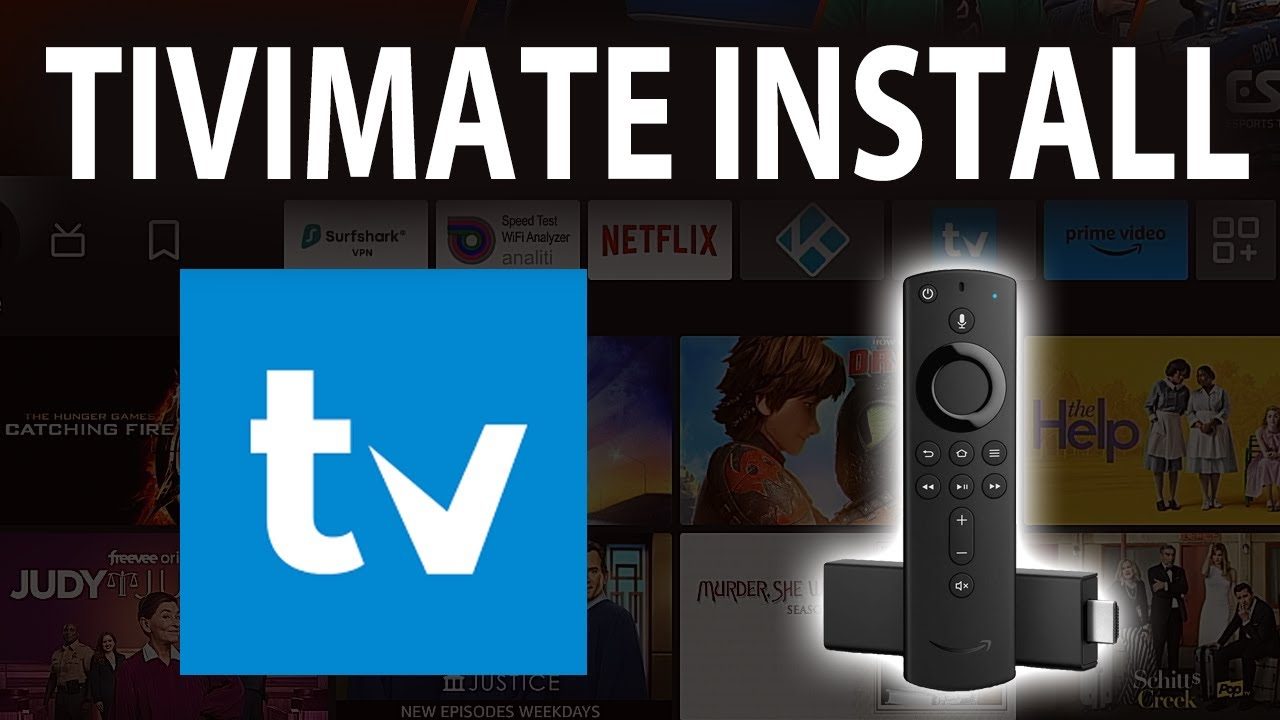
How To Install TiviMate On Fire stick And Fire TV 2026

How to Install TiviMate IPTV on Firestick & Android TV 2026 – VocoTV Setup Guide

```

If you want to install IPTV on Firestick, Fire TV, Android TV, Google TV, Android TV Box, Shield TV, Android mobile, or tablet, this complete 2026 VocoTV guide gives you the clean setup path. The easiest method is to start with the official VOCO TV MATE App, then use TiviMate as an advanced IPTV player if you prefer a TV-guide style layout.

This guide is made for users searching for how to install TiviMate IPTV 2026, TiviMate Firestick install, VocoTV TiviMate setup, Voco TV Mate app, IPTV on Firestick, and IPTV setup on Android TV. It includes the VOCO TV MATE Downloader code first, then TiviMate installation, Xtream Codes setup, M3U setup, device tips, troubleshooting, internal VocoTV links, and FAQ schema.

Important: This public article does not include private IPTV usernames, passwords, M3U playlist URLs, or portal/server details. Use only the private login information sent to you after your VocoTV trial or subscription is activated.

```
How to install TiviMate IPTV 2026 with VocoTV on Firestick and Android TV
Install IPTV on Firestick and Android devices using VOCO TV MATE first, then use TiviMate for advanced IPTV player features.

Before You Install IPTV on Firestick or Android TV

Before installing VOCO TV MATE or TiviMate, make sure your device is ready. Firestick and Android TV devices need a stable internet connection, enough storage, and the correct app installation permissions.

  • Use a Firestick, Fire TV, Android TV Box, Android TV, Google TV, Shield TV, Android mobile, or tablet.
  • Connect to stable Wi-Fi or Ethernet if available.
  • Install the Downloader app if you are using Firestick or Android TV.
  • Allow Downloader to install unknown apps when the device asks.
  • Keep your private VocoTV login details ready.
  • Do not publish your username, password, M3U link, or server URL online.

Helpful external device links: Amazon Fire TV, Google TV, and Android TV.


Method 1: Install VOCO TV MATE App – Best First Method for VocoTV Users

Method 1 is the recommended first setup method because VOCO TV MATE is made for easy VocoTV app login. It works on Android-based devices including Firestick, Android TV Box, Android TV, Android mobile, Android tablet, Shield TV, Google TV, and more.

VOCO TV MATE App Login Details

  • Works on: Firestick, Android TV Box, Android TV, Mobile, Tablet, Shield TV, Google TV, and more Android devices.
  • Download Link #1: http://aftv.news/2695252
  • Code for Downloader App: 2695252
  • Username: use your private VocoTV username sent after activation.
  • Password: use your private VocoTV password sent after activation.

How to Install VOCO TV MATE on Firestick

  1. Open your Firestick home screen.
  2. Go to Find and search for Downloader.
  3. Install and open the Downloader app.
  4. If asked, allow Downloader permission to install apps from unknown sources.
  5. Enter this Downloader code: 2695252.
  6. Press Go.
  7. Wait for the VOCO TV MATE app file to download.
  8. Click Install.
  9. Open VOCO TV MATE.
  10. Enter your private VocoTV app username and password.
  11. Wait for your account, channels, categories, and VOD sections to load.

This method is best for users who want the fastest VocoTV setup without manually configuring TiviMate, M3U playlists, or Xtream Codes settings.


Method 2: Install TiviMate IPTV Player on Firestick

TiviMate is a popular IPTV player for Firestick, Android TV, Google TV, and Android TV boxes. TiviMate is only a player, so it does not include channels by itself. You must add IPTV service details from your provider after installation.

Use TiviMate if you want a strong TV-guide layout, channel groups, favorites, EPG guide options, backup features, playlist management, and a clean living-room IPTV interface.

Step 1: Install Downloader

  1. From the Firestick home screen, select Find.
  2. Search for Downloader.
  3. Select the Downloader app.
  4. Click Download or Get.
  5. Open Downloader after installation.

Step 2: Enable Unknown Apps for Downloader

  1. Go to Firestick Settings.
  2. Open My Fire TV.
  3. Select Developer Options.
  4. Select Install Unknown Apps.
  5. Turn Downloader to On.

If Developer Options does not appear, open Settings > My Fire TV > About, then click your Fire TV device name several times until developer mode is enabled. Then go back and open Developer Options.

Step 3: Download and Install TiviMate

  1. Open Downloader.
  2. Enter the official TiviMate website or trusted app download source.
  3. Download the TiviMate APK file.
  4. Click Install.
  5. Click Done after installation.
  6. Delete the APK file inside Downloader to save Firestick storage.
  7. Open TiviMate from your apps list.

Official reference: TiviMate official website.


Method 3: Set Up VocoTV in TiviMate Using Xtream Codes

Xtream Codes setup is one of the easiest ways to connect VocoTV with TiviMate if your account details support this login method. Use only the private account information sent to you after your VocoTV free trial or paid subscription is activated.

  1. Open TiviMate.
  2. Click Add Playlist.
  3. Select Xtream Codes.
  4. For playlist name, enter VocoTV or Voco TV.
  5. Enter the private server URL sent by VocoTV support.
  6. Enter your private VocoTV username.
  7. Enter your private VocoTV password.
  8. Click Next.
  9. Wait for the playlist to process.
  10. Click Done when the playlist loads.
  11. Wait for live TV groups and EPG guide data to load.

Do not publish your private server URL, username, password, or playlist link on a WordPress page, forum, screenshot, comment, or social media post.


Method 4: Set Up VocoTV in TiviMate Using M3U Playlist

Some users prefer M3U playlist setup. This can work with TiviMate if your VocoTV account includes an M3U playlist URL. The M3U link is private and should only be entered inside your IPTV app.

  1. Open TiviMate.
  2. Select Add Playlist.
  3. Choose M3U Playlist.
  4. Paste your private VocoTV M3U playlist URL inside the app.
  5. Name the playlist VocoTV.
  6. Click Next.
  7. Wait for the playlist to load.
  8. Open the TV guide and test live channels.

M3U links can expose account access, so never publish them publicly. If you need help, use the VocoTV troubleshooting guide.


Method 5: Install IPTV on Android TV, Google TV, Shield TV, Android Box, Mobile, and Tablet

The same general setup works on Android-based devices. VOCO TV MATE is the easiest first option, while TiviMate is a strong advanced player for Android TV-style devices.

Android TV / Google TV Setup

  1. Install Downloader or use the browser method supported by your device.
  2. Use Downloader code 2695252 for VOCO TV MATE.
  3. Install the app.
  4. Open the app.
  5. Enter your private VocoTV username and password.
  6. Test live TV, VOD, sports, and guide loading.

Android Mobile and Tablet Setup

  1. Download a supported IPTV app or use VOCO TV MATE if supported on your device.
  2. Install the app.
  3. Enter your private VocoTV login details.
  4. Test playback on Wi-Fi and mobile internet.

For the full device guide, use the VocoTV install IPTV guide.


TiviMate Free vs Premium: Which One Should You Use?

The free version of TiviMate can be enough for basic playlist setup and watching. TiviMate Premium is better for users who want advanced control, multiple playlists, favorites, scheduled recording support, backup and restore, parental controls, channel sorting, and more guide customization.

For simple VocoTV access, start with VOCO TV MATE. For advanced IPTV organization, use TiviMate after you understand your login method.

Best Way to Test VocoTV After Installation

After installing VOCO TV MATE or TiviMate, test more than one channel. A proper IPTV test should check live TV, sports, movies, series, EPG, VOD, channel switching, audio sync, and app stability.

  • Test live TV categories.
  • Open sports channels during busy hours if possible.
  • Check movies and series loading.
  • Check EPG guide data.
  • Test channel switching speed.
  • Restart the app and confirm the playlist reloads correctly.
  • Test Wi-Fi and Ethernet if available.

New users can start with the VocoTV IPTV free trial. After testing, compare the VocoTV IPTV subscription plans.

VocoTV TiviMate IPTV setup support troubleshooting Firestick Android TV
Use VocoTV support links for IPTV setup, Firestick installation, buffering fixes, login help, and subscription guidance.

Common TiviMate and VOCO TV MATE Problems

Downloader code is not working

  • Check that you entered 2695252 correctly.
  • Restart Downloader and try again.
  • Check your internet connection.
  • Try the direct link: http://aftv.news/2695252.

App will not install

  • Allow Downloader to install unknown apps.
  • Free storage on your Firestick or Android TV.
  • Restart your device.
  • Download again and reinstall.

Login says invalid

  • Type username and password manually.
  • Remove extra spaces before and after login details.
  • Make sure your trial or subscription is active.
  • Confirm you are using the right app login method.
  • Use the VocoTV account login if you need account access.

TiviMate playlist will not load

  • Check the server URL, username, and password inside the app.
  • Use Xtream Codes if M3U fails, or M3U if Xtream Codes fails.
  • Clear app cache.
  • Delete the playlist and add it again.
  • Restart Firestick or Android TV.

Buffering or freezing

Best Internal Links for This TiviMate IPTV Article

Helpful External Links

How to Install TiviMate IPTV 2026 FAQ

What is the best first method to install VocoTV on Firestick?

The best first method is VOCO TV MATE. Open Downloader, enter code 2695252, install the app, and login with your private VocoTV username and password.

What is the VOCO TV MATE Downloader code?

The VOCO TV MATE Downloader code is 2695252.

What is the VOCO TV MATE download link?

The public download link is http://aftv.news/2695252.

Does TiviMate include live channels?

No. TiviMate is an IPTV player. You need private IPTV service details from VocoTV after your trial or subscription is activated.

Can I use VocoTV with TiviMate?

Yes. You can use VocoTV with TiviMate if your account supports Xtream Codes or M3U playlist setup. Enter private details only inside the app.

Should I publish my IPTV username, password, M3U, or server URL?

No. Never publish private IPTV login details, M3U playlist URLs, or server details on a public website, screenshot, comment, or social page.

What devices work with VOCO TV MATE?

VOCO TV MATE works on Android-based devices including Firestick, Android TV Box, Android TV, Android mobile, tablet, Shield TV, Google TV, and more.

What should I do if IPTV is buffering?

Restart your router and device, use Ethernet if possible, clear app cache, close background apps, test your internet, and use the VocoTV troubleshooting guide.

Final Word

The best 2026 setup path is simple: install VOCO TV MATE first using Downloader code 2695252, then use TiviMate if you want a more advanced IPTV player interface. VOCO TV MATE is the fastest method for most users, while TiviMate is better for users who want advanced playlist control, favorites, EPG customization, and TV-guide style browsing.

Start with the VocoTV IPTV free trial, install the app on your real device, test live TV and VOD, then compare the VocoTV IPTV subscription plans when the setup works well.
Designer
broadband for iptvOnline IPTVUSA IPTVvoco tv iptv tips newsvocotv iptv streaming

Best IPTV Players for Windows PC in 2026

Best IPTV Players For Windows in 2026

Best IPTV Players for Windows 11, 10, 8.1

IPTV Players for Windows

PTV elevates your television experience with superior resolution, improved dynamic range, and a wider range of channels compared to standard TV. Best IPTV Players Windows come equipped with native capabilities for media encoding, live TV streaming, and audio/video adjustments.

VLC Media Player

VLC is widely popular due to its versatility and support for various media formats. It’s an open-source, cross-platform media player that can stream IPTV content seamlessly without any ads or spyware​ (TechPout)​​ (TechWorm)​​ (TechDator)​.

Kodi

Known for its extensive add-ons and plugins, Kodi can manage media files and stream IPTV content. It’s a highly customizable player that works across multiple devices​ (TechWorm)​​ (TechDator)​​ (Betechwise)​

MyIPTV Player

This player is user-friendly and supports m3u playlists for streaming live TV and video content. It comes with an Electronic Program Guide (EPG) and various channel filtering options​ (TechWorm)​​ (Tweak Library)​​ (Betechwise)​.

Plex

Plex allows you to stream local media files as well as IPTV content. It supports 4K streaming and offers excellent transcoding capabilities, making it a popular choice for a smooth streaming experience​ (TechWorm)​​ (TechDator)​​ (Betechwise)​.

Simple TV

This portable IPTV player supports customization, brightness, and volume adjustments. It also allows users to download playlists created by others and supports LUA scripting​ (Tweak Library)​​ (Betechwise)​.

PotPlayer

Although not as well-known, PotPlayer is optimized for Windows and supports a wide range of video codecs and formats, providing a rich user experience​ (TechDator)​.

ProgTV/ProgDVB

This player is suitable for both digital TV and radio streaming, offering features like network broadcasting, Teletext, and picture-in-picture support​ (TechDator)​​ (Betechwise)​.

TiviMate

TiviMate is known for its clean interface and the ability to add multiple playlists. It also supports scheduling TV guides and adding favorite channels to the home screen​ (TechPout)​.

OTTPlayer

This free, ad-free player supports multiple protocols and offers centralized control over various devices through its website​ (TechWorm)​​ (TechDator)​.

Free TV Player

A simple and free IPTV player that allows you to stream live TV channels, movies, and radio. It supports M3U playlists and can be used on multiple devices​ (TechDator)​​ (Betechwise)​.

These players offer a range of features to enhance your IPTV viewing experience on Windows.
beste iptv norge
Online IPTVvoco tv iptv tips newsvoco tv iptv tutorialsvocotv 2024vocotv iptv streaming

Iptv norge – IPTV TJENESTER i Norge – IPTV Abonnementer Norway

Beste iptv norge – IPTV-TJENESTER i Norge

Oppgrader til den Best IPTV Norway -IPTV NORGE serveren i dag!

Introduksjon

IPTV, eller Internett Protocol Television, har revolusjonert måten vi ser på TV. Med en mengde tjenester tilgjengelig, kan det være utfordrende å finne den beste IPTV-tjenesten i Norge. I denne artikkelen vil vi utforske de ti beste IPTV-tjenestene i Norge i 2024, deres fordeler og hva du bør se etter når du velger en tjeneste.

Hva er IPTV?

IPTV står for Internett Protocol Television og er en teknologi som leverer TV-innhold over internett i stedet for gjennom tradisjonelle satellitt- eller kabelsystemer. Dette gjør det mulig for seere å strømme TV-kanaler og annet innhold direkte til deres enheter.

Fordeler med IPTV

Ubegrenset tilgang til innhold

En av de største fordelene med IPTV er den ubegrensede tilgangen til et bredt spekter av innhold. Fra internasjonale kanaler til sportsarrangementer og filmer, gir IPTV brukerne en rik og variert opplevelse.

Bedre kvalitet på bilde og lyd

IPTV tilbyr ofte bedre kvalitet på både bilde og lyd sammenlignet med tradisjonelle TV-tjenester. Med HD- og 4K-streaming tilgjengelig, kan seerne nyte en mer oppslukende opplevelse.

Premium sportskanaler

Alle dine sportskanaler av høy kvalitet fra hele verden. Ikke gå glipp av din favoritt sportsbegivenhet lenger.

Live TV

Nyt favorittkanalene og programmene dine med live-TVen vår. Velg blant over 10 000 direktesendte TV-kanaler, og gå aldri glipp av en oppdatering på favorittprogrammet ditt fra hele verden.

Enkelt å sette opp

Vi har guider som viser hvordan du setter opp IPTV-pakken på alle systemer. Vi hjelper deg også med å sette opp din IPTV-pakke via chat.

De beste IPTV-tjenestene i Norge

VocoTv

Vocotv er kjent for sitt omfattende kanalutvalg og høy kvalitet på streaming. Tjenesten tilbyr enkle abonnementsløsninger og er en favoritt blant mange nordmenn.

Viasat IPTV

Viasat IPTV er kjent for sitt omfattende sportsutvalg, inkludert eksklusive rettigheter til mange internasjonale sportsarrangementer. Perfekt for sportsentusiaster.

Canal Digital IPTV

Canal Digital IPTV tilbyr et solid utvalg av norske og internasjonale kanaler, og er kjent for sin pålitelighet og gode kundeservice.

RiksTV IPTV

RiksTV IPTV er en av de mest populære tjenestene i Norge, kjent for sitt omfattende kanalutvalg og gode kundeservice.

Altibox IPTV

Altibox IPTV tilbyr en rik medieopplevelse med et bredt spekter av kanaler og innhold. Tjenesten er også kjent for sin pålitelighet og høye kvalitet.

Sumo IPTV

Sumo IPTV er et godt valg for de som ønsker et bredt spekter av innhold, inkludert sports- og underholdningskanaler. Tjenesten er kjent for sin brukervennlighet og høye kvalitet.

TV2 Play IPTV

TV2 Play IPTV tilbyr et godt utvalg av norske og internasjonale kanaler, med fokus på nyheter og underholdning. Tjenesten er kjent for sin høye kvalitet og pålitelighet.

Mest sette TV-kanaler i Norge

NRK1

NRK1 er Norges største TV-kanal og tilbyr et bredt spekter av programmer, inkludert nyheter, sport og underholdning.

TV2

TV2 er en populær kommersiell kanal som tilbyr nyheter, sport, filmer og TV-serier.

TVNorge

TVNorge er kjent for sitt underholdningsinnhold, inkludert reality-show og komedier.

NRK2

NRK2 tilbyr et variert programutvalg med fokus på dokumentarer, kultur og samfunnsspørsmål.

TV3

TV3 er en kommersiell kanal som tilbyr filmer, serier og underholdningsprogrammer.

Populære sportsnettsteder i Norge

Eurosport Norge

Eurosport Norge dekker et bredt spekter av sportsbegivenheter, inkludert fotball, sykling og vintersport.

Viasport

Viasport tilbyr omfattende dekning av ulike sportsbegivenheter, inkludert fotball og motorsport.

TV2 Sporten

TV2 Sporten gir oppdatert informasjon om norske og internasjonale sportsnyheter og resultater.

VG Sporten

VG Sporten dekker de siste sportsnyhetene, analyser og live-oppdateringer.

Dagbladet Sport

Dagbladet Sport tilbyr de nyeste sportsnyhetene, inkludert dekning av store sportsbegivenheter.

FAQ

Hva er IPTV?

IPTV står for Internett Protocol Television og er en måte å levere TV-innhold over internett på.

Hvordan fungerer IPTV?

IPTV fungerer ved å sende TV-signaler over internett til en kompatibel enhet, som en smart-TV eller datamaskin.

Er IPTV bedre enn tradisjonell TV?

Mange mener at IPTV er bedre enn tradisjonell TV på grunn av det brede utvalget av kanaler og høyere kvalitet på bilde og lyd.

Hvordan velger jeg den beste IPTV-tjenesten?

Når du velger en IPTV-tjeneste, se etter et godt kanalutvalg, rimelige priser, brukervennlighet og pålitelighet.

Kan jeg bruke IPTV uten internett?

Nei, IPTV krever en internettforbindelse for å fungere.

Konklusjon

IPTV har revolusjonert måten vi ser på TV, og det finnes mange flotte tjenester tilgjengelig i Norge. Ved å velge riktig IPTV-tjeneste kan du nyte et bredt utvalg av kanaler og høykvalitets innhold direkte på dine enheter. Vi håper denne guiden har hjulpet deg med å finne den beste IPTV-tjenesten som passer dine behov.

Free Trial IPTV
Online IPTVUSA IPTVvoco tv iptv tips newsvocotv iptv streaming

Voco Tv Provider 2026 – IPTV Service, Plans, Trial & Setup Guide

VOCOTV - NEXT LEVEL IPTV - VOCOTV

Voco Tv Provider 2026 – Complete IPTV Provider Guide for Streaming, Plans, Trial, Apps and Support

Voco Tv Provider 2026 is a full guide for users who want to understand VocoTV as an IPTV provider before choosing a trial, subscription, device setup or long-term plan. A real IPTV provider should not only advertise thousands of channels. It should help users test the service, install the right app, use the correct device, manage an account, fix streaming issues and choose the right plan based on real usage.

In 2026, users expect IPTV to work on Firestick, Android TV, Google TV, Android TV Box, Smart TV, mobile, tablet, Windows, Mac and other streaming devices. They also expect live TV, sports, movies, series, VOD, PPV-style events where available, EPG guide support, stable performance and clear instructions. This guide explains how to judge VocoTV as a provider and how to use the official VocoTV pages for trial, subscription, installation and support.

This article is written for users searching for Voco Tv Provider 2026, VocoTV IPTV provider, Voco TV service provider, best IPTV provider 2026, IPTV subscription provider or VocoTV streaming provider.

Important: This public guide does not publish private IPTV usernames, passwords, M3U playlist URLs, Xtream Codes server links, portal URLs or hidden login details. Use private VocoTV account details only inside trusted IPTV apps after your free trial or subscription is activated.

Voco Tv Provider 2026 IPTV streaming provider guide
Voco Tv Provider 2026 should be judged by real usage: trial access, plan value, device support, app setup, streaming quality and support.

Quick Decision: Is VocoTV the Right IPTV Provider for You?

VocoTV is a better fit if you want an IPTV provider that gives you a path from test to setup to subscription. Instead of guessing, users should follow a simple decision process: start with a trial, install the correct app, test the service on the device they actually use, check live TV and VOD performance, then compare plans.

VocoTV May Fit You If You Want:

  • IPTV access across popular streaming devices.
  • A free trial before choosing a paid plan.
  • Live TV, movies, VOD, sports and PPV-style content where available.
  • Support for Firestick, Android TV, Android boxes, mobile and more.
  • Installation help instead of only a login message.
  • Flexible subscription plans with different duration and connection options.
  • A provider website with pricing, trial, FAQ, setup and troubleshooting pages.

Start here if you are new: VocoTV IPTV Free Trial. If you already tested the service, compare plans here: VocoTV IPTV Subscription Plans.

Official VocoTV Internal Links for Provider Research

Use these VocoTV pages to research the provider properly. These links cover the main user path: homepage, services, free trial, pricing, installation, account access, troubleshooting, FAQ, reseller, affiliate and policies.

What Makes a Good IPTV Provider in 2026?

A good IPTV provider is not only a login seller. A strong provider should give users a complete service path. That means the provider should explain what the service includes, how to test it, how to install it, how to use it on different devices, how to fix issues and how to choose the right plan.

When judging any IPTV provider in 2026, use these points:

  1. Trial access: Can new users test before paying?
  2. Plan clarity: Are subscription options and connection counts easy to understand?
  3. Device support: Does the provider support Firestick, Android TV, Smart TV, mobile and other common devices?
  4. App setup: Are there clear app instructions?
  5. Content categories: Does the service include live TV, movies, VOD, sports and guide data where available?
  6. Support path: Is there a troubleshooting page, FAQ or account guide?
  7. Security: Does the provider avoid exposing private logins publicly?
  8. Performance: Can the service handle peak hours and live events?

VocoTV Provider Scorecard

This scorecard helps users judge VocoTV as a provider before choosing a plan. It is not based on empty marketing language. It is based on what users should actually test.

Provider AreaWhat to CheckVocoTV User Path
TrialCan you test live TV, sports, movies and app login before buying?Start Free Trial
PlansCan you choose monthly, multi-month or yearly access with the right connection count?View Plans
InstallationAre there instructions for Firestick, Android, Smart TV and other devices?Install Guide
Streaming supportIs there help for buffering, freezing, login errors and device issues?Troubleshoot IPTV
Account accessCan users manage account, subscription and service details?Account Guide
VocoTV IPTV provider setup on smart TV Android Firestick and mobile
A strong IPTV provider should support real devices, real apps, real troubleshooting and real plan selection, not only channel-count claims.

VocoTV Free Trial: Why It Matters for Provider Trust

A free trial is one of the most important signs that an IPTV provider understands user concerns. IPTV performance can change based on internet speed, router quality, Wi-Fi strength, app choice, device performance and peak-time traffic. A trial lets users test the service before choosing a longer plan.

When using the VocoTV IPTV free trial, test more than one thing. Do not open one channel for one minute and decide. A proper provider test should include live TV, sports, VOD, guide loading, channel switching, app restart and your real home internet connection.

Free Trial Testing Checklist

  • Open several live TV categories.
  • Test sports during a busy time if possible.
  • Open movies and series through VOD where available.
  • Check if guide data loads inside your chosen app.
  • Switch between channels quickly.
  • Restart the app and confirm the playlist reloads.
  • Test Wi-Fi and Ethernet if your device supports both.
  • Try a second IPTV app if the first app is not smooth.

Use this page to begin: VocoTV IPTV Free Trial.

VocoTV Plans: How to Choose the Right Provider Package

The right IPTV provider package depends on how you watch. Some users only need one connection. Others need multiple connections for different rooms or devices. Some users want a short plan while testing. Others want a longer plan when they already know the service works.

Before choosing a VocoTV subscription, ask yourself:

  • How many devices need to stream at the same time?
  • Will you use Firestick, Android TV, Smart TV, mobile or tablet?
  • Do you mostly watch live TV, sports, movies or series?
  • Do you want a short plan first or a longer plan after testing?
  • Do you need multiple connections for family use?
  • Is your internet connection stable enough for HD or 4K-style streams where available?

Compare options here: VocoTV IPTV Subscription Plans.

Device Support: What a 2026 IPTV Provider Must Handle

A modern IPTV provider should support the devices people actually use. VocoTV can be used across popular device types depending on the app and login method. Users should always install the app that matches the device instead of forcing one setup everywhere.

Common IPTV Devices

  • Amazon Firestick and Fire TV: common living-room IPTV setup using Downloader and IPTV apps.
  • Android TV and Google TV: strong for app-based IPTV and TV-friendly navigation.
  • Android TV Box: useful for dedicated IPTV streaming.
  • Nvidia Shield TV: powerful Android TV device for advanced users.
  • Smart TV: can work depending on app support and TV brand.
  • Android mobile and tablet: good for mobile viewing and fast testing.
  • iPhone and iPad: requires compatible IPTV apps from the App Store.
  • Windows and Mac: useful for VLC, browser or playlist testing.

Helpful device references: Amazon Fire TV, Android TV, and Google TV.

Best App Path for Voco Tv Provider 2026

A provider is only as good as the app experience users can install. VocoTV users can use different app paths depending on device, comfort level and login method.

Simple VocoTV App Login

Use a VocoTV app method when you want the most direct setup. This is best for users who do not want to manually manage M3U or advanced player settings.

IBO Player Activation

IBO Player is useful when the app shows a MAC Address and Device Key. The user can activate from a phone or computer at IBO Player activation. This method is helpful when typing with a TV remote is slow.

TiviMate for Advanced Android TV Users

TiviMate is popular for Android TV and Firestick users who want a cleaner TV-guide layout, favorites and category control. It is only a player and does not include channels by itself.

VLC for Testing

VLC Media Player is useful for testing private playlist access on Windows, Mac or Linux when supported by the account.

Provider Quality: How to Test Streaming Performance

Do not judge an IPTV provider from the homepage alone. Test the service like a real customer. A provider that works well for everyday streaming should pass a practical quality test.

  1. Login test: Enter your private VocoTV details and confirm the app opens the service.
  2. Live TV test: Open multiple categories and switch between channels.
  3. Sports test: Test during a live event or busy time when possible.
  4. VOD test: Open movies and series and check loading speed.
  5. EPG test: Check guide loading inside the app.
  6. Restart test: Close and reopen the app to see if the service reloads correctly.
  7. Network test: Compare Wi-Fi and Ethernet if possible.
  8. Backup app test: Try another app if one app has issues.

Internet and Network Rules for IPTV Providers

Even a good IPTV provider can look bad if the user’s network is weak. IPTV needs stable internet, not only a high speed number. Router quality, Wi-Fi distance, ISP routing, device memory, app cache and VPN location can all change performance.

  • Use Ethernet when possible for TV devices.
  • Use 5 GHz Wi-Fi if the device is close to the router.
  • Restart router and streaming device before judging the service.
  • Clear app cache if channels start loading slowly.
  • Do not run too many streams on the same connection.
  • Test internet with Speedtest by Ookla and Fast.com.
Voco Tv Provider 2026 internet router IPTV streaming quality
Provider quality and home network quality work together. Test your router, Wi-Fi, app and device before blaming one side.

What VocoTV Should Be Used For

VocoTV can be used as an IPTV provider option for users who want one service path for live TV, movies, series, sports, VOD, apps, installation help and subscription choices. It is especially relevant for users who prefer to test before buying and want official pages for setup and support.

Use VocoTV if your priority is:

  • IPTV streaming across multiple device types.
  • Testing a provider before choosing a plan.
  • Using Firestick or Android TV as the main streaming device.
  • Access to installation and troubleshooting guides.
  • Account management through VocoTV pages.
  • Choosing between different subscription durations and connection counts.

What to Avoid When Choosing Any IPTV Provider

Whether you choose VocoTV or another provider, avoid risky behavior and weak provider signals. Many IPTV problems happen because users trust random links, fake domains, leaked login lists or cracked apps.

  • Do not use random IPTV usernames and passwords from forums.
  • Do not publish your M3U playlist or server URL.
  • Do not install unknown APK files from suspicious websites.
  • Do not trust providers that only advertise huge channel numbers with no support pages.
  • Do not choose a long plan before testing on your real device.
  • Do not ignore refund, privacy and account policies.
  • Do not assume a VPN fixes every issue.

VocoTV Provider Setup Roadmap

Use this roadmap if you want to move from research to actual IPTV usage.

  1. Open the VocoTV official website.
  2. Read the VocoTV services page.
  3. Start with the VocoTV IPTV Free Trial.
  4. Install the correct app using the VocoTV installation guide.
  5. Test live TV, VOD, sports, EPG and app restart.
  6. Use the troubleshooting guide if something buffers or fails.
  7. Compare VocoTV subscription plans.
  8. Use the VocoTV account guide for login and subscription management.

VocoTV for Resellers and Affiliates

VocoTV is not only for direct IPTV users. Some visitors may want reseller or affiliate options. A strong provider should separate normal customer subscriptions from reseller and marketing programs so users choose the correct path.

Reseller users should judge a provider differently from normal viewers. They need panel stability, customer support, account handling, credits, pricing, margins and long-term service consistency.

Voco Tv Provider 2026 FAQ

What is Voco Tv Provider 2026?

Voco Tv Provider 2026 refers to VocoTV as an IPTV provider option for users who want live TV, movies, VOD, sports, device support, free trial access, subscription plans, setup guides and troubleshooting help.

Is VocoTV the same as Voco TV?

Yes. Users often search for VocoTV, Voco TV, Voco IPTV or Voco Tv Provider when they mean the VocoTV IPTV service and related official pages.

Can I test VocoTV before subscribing?

Yes. New users can start from the VocoTV IPTV free trial page and test the service before choosing a paid plan.

What devices can use VocoTV?

VocoTV can be used on common IPTV devices such as Firestick, Android TV, Android TV Box, Google TV, Smart TV, mobile, tablet, Windows, Mac and compatible IPTV players depending on setup method.

Does VocoTV include apps and setup help?

VocoTV provides installation-related pages and setup guidance. Users should choose the app that matches their device and use only private account details inside trusted apps.

Where can I see VocoTV plans?

You can view plan options on the VocoTV IPTV subscription plans page.

What should I test during the VocoTV free trial?

Test live TV, sports, movies, series, VOD, guide loading, channel switching, app restart, Wi-Fi, Ethernet and a backup app if needed.

Why does IPTV buffer even with a good provider?

Buffering can come from weak Wi-Fi, old router, device overload, app cache, slow VPN routing, ISP congestion, overloaded network or wrong app settings.

Should I share my VocoTV login or M3U link?

No. Never share private IPTV usernames, passwords, M3U links, server URLs, portal URLs or screenshots that show account details.

More Useful VocoTV Pages

External Resources

Final Word

Voco Tv Provider 2026 should be judged like a complete IPTV provider, not just a channel list. The right provider should give users a trial path, clear plans, app setup, device support, account guidance, troubleshooting and a realistic way to test performance before choosing a long subscription.

The best path is simple: start on the VocoTV official website, test through the VocoTV IPTV Free Trial, install using the VocoTV Installation Guide, fix issues with the Troubleshooting Guide, then choose the right plan from VocoTV IPTV Subscription Plans when your test works well.

5/5
blog_07
voco tv iptv tips newsvoco tv iptv tutorials

Install STBEmu Pro 2026 – VocoTV Portal & MAC Setup Guide

Whether you are building an enterprise web portal or a state-of-the-art website, you always need the right modern tools. Well-built and maintained PHP frameworks provide those tools in abundance…

blog_03
voco tv iptv tips news

VocoTV WiFi IPTV 2026 – Best Internet Setup & Worldwide TV

Whether you are building an enterprise web portal or a state-of-the-art website, you always need the right modern tools. Well-built and maintained PHP frameworks provide those tools in abundance…