Tag: install iptv on firestick

Online IPTVUSA IPTVvoco tv iptv tutorialsvoco tv iptv updatesvocotv 2024vocotv iptv streaming

How To Install IBO Player Pro On Firestick
IBO Player Firestick 2026 – How to Install IBO Player on Firestick with VocoTV

If you want to install IBO Player Firestick in 2026, this guide shows the clean VocoTV setup method for Firestick, Fire TV, Android TV Box, Android TV, Google TV, Shield TV, Android mobile, and tablet. Some users type the keyword as ibo player firestcik, but the correct setup is IBO Player Firestick.

IBO Player is one of the best IPTV player options for Firestick because it uses MAC Address and Device Key activation. This makes it easy to activate your IPTV playlist from your phone or computer through the IBO Player website.

For VocoTV users, the best method is simple: install IBO Player on Firestick, write down your MAC Address and Device Key, open the IBO Player activation website, add your private VocoTV login details, then restart the app on Firestick.

Start here: VocoTV IPTV Free Trial

IBO Player Firestick setup with VocoTV IPTV
Install IBO Player on Firestick, activate it with MAC Address and Device Key, then use your private VocoTV login details.

Quick VocoTV Links for IBO Player Firestick

What Is IBO Player on Firestick?

IBO Player Firestick is an IPTV player setup that lets users connect IPTV service details to the IBO Player app on Amazon Firestick or Fire TV. IBO Player itself is only a player. It does not include channels by itself. To watch IPTV, you need private IPTV login details from your provider after activation.

With VocoTV, you can use IBO Player as one of the recommended app options. It is useful because the activation process uses your Firestick app’s MAC Address and Device Key, then allows you to add playlist details through the IBO Player website.

For more Firestick device help, you can also check Amazon Fire TV and the Amazon Fire TV Help Center.

Before You Install IBO Player on Firestick

Before installing IBO Player, prepare your Firestick correctly. You need Downloader installed and permission enabled for app installation.

  • Use Firestick, Fire TV, Fire TV Cube, Android TV Box, Android TV, Google TV, Shield TV, Android mobile, or tablet.
  • Connect your device to stable internet.
  • Install the Downloader app.
  • Enable permission for Downloader to install apps.
  • Keep your private VocoTV username and password ready.
  • Do not publish private usernames, passwords, M3U links, or server URLs online.

Helpful external links: Google TV, Android TV, and Speedtest by Ookla.


Method 1: Install IBO Player on Firestick – Recommended by VocoTV

This is the main method for the keyword ibo player firestick. Use this method if you want IBO Player on Firestick with VocoTV IPTV.

IBO Player App Setup Details

  • Recommended by: VocoTV
  • Works on: Firestick, Fire TV, Android TV Box, Android TV, Google TV, Shield TV, Android mobile, tablet, and compatible Android devices.
  • Downloader Code: 528993
  • Download Link: http://aftv.news/407498
  • Activation Website: https://iboplayer.pro
  • Login: use your private VocoTV username and password.

Step 1: Install Downloader on Firestick

  1. Turn on your Firestick.
  2. Go to the home screen.
  3. Click the Search icon.
  4. Search for Downloader.
  5. Select the Downloader app.
  6. Click Download or Get.
  7. Open Downloader after installation.

Step 2: Allow Downloader to Install Apps

  1. Open Firestick Settings.
  2. Go to My Fire TV.
  3. Open Developer Options.
  4. Select Install Unknown Apps.
  5. Turn Downloader to On.

If Developer Options does not appear, go to Settings > My Fire TV > About, then click the Fire TV device name several times until developer mode is enabled. Go back and Developer Options should appear.

Step 3: Download IBO Player on Firestick

  1. Open Downloader.
  2. Enter this code: 528993.
  3. Or enter this link: http://aftv.news/407498.
  4. Click Go.
  5. Wait for the IBO Player app file to download.
  6. Click Install.
  7. Wait for installation to finish.
  8. Click Open.

Step 4: Get Your MAC Address and Device Key

  1. Open IBO Player on Firestick.
  2. Wait for the home screen to load.
  3. Write down your MAC Address.
  4. Write down your Device Key.
  5. Keep both exactly as shown on the screen.

Step 5: Activate IBO Player with VocoTV

  1. Open your phone or computer.
  2. Visit https://iboplayer.pro.
  3. Click Activate.
  4. Enter your IBO Player MAC Address.
  5. Enter your Device Key.
  6. Use your private VocoTV username and password.
  7. Save the playlist.
  8. Go back to Firestick.
  9. Restart IBO Player.
  10. Wait for live TV, movies, series, sports, and categories to load.

This is the best method if you want IBO Player Firestick setup with VocoTV because it gives a clean activation process using MAC Address and Device Key.

IBO Player Firestick activation with MAC Address and Device Key
IBO Player setup uses your Firestick app MAC Address and Device Key, then connects with your private VocoTV account details.

Method 2: VOCO TV MATE App – Easiest Backup Method

If IBO Player does not work well on your device, use VOCO TV MATE as the easiest backup method. This app works on all Android devices including Firestick, Android TV Box, Android TV, mobile, tablet, Shield TV, Google TV, and more.

VOCO TV MATE App Login Details

  • Works on: Firestick, Android TV Box, Android TV, mobile, tablet, Shield TV, Google TV, and more Android devices.
  • Download Link #1: http://aftv.news/2695252
  • Code for Downloader App: 2695252
  • Username: use your private VocoTV username sent after activation.
  • Password: use your private VocoTV password sent after activation.

How to Install VOCO TV MATE

  1. Open Downloader.
  2. Enter code 2695252.
  3. Or visit http://aftv.news/2695252.
  4. Download and install VOCO TV MATE.
  5. Open the app.
  6. Enter your private VocoTV username and password.
  7. Wait for the content to load.

VOCO TV MATE is the fastest option for users who do not want MAC Address and Device Key activation.


Method 3: VocoTV OTT App – Alternative Android App

VocoTV OTT App is another backup method for Android-based devices. Use this if you want a third app option after IBO Player and VOCO TV MATE.

VocoTV OTT App Setup Details

  • Works on: Firestick, Android TV Box, Android TV, Google TV, Shield TV, Android mobile, and tablet.
  • Downloader Code: 274303
  • Download Link: http://aftv.news/274303
  • Login: use your private VocoTV app username and password.

How to Install VocoTV OTT App

  1. Open Downloader again.
  2. Enter code 274303.
  3. Or visit http://aftv.news/274303.
  4. Download and install VocoTV OTT App.
  5. Open the app.
  6. Enter your private VocoTV username and password.
  7. Test live TV, VOD, sports, and categories.

Method 4: TiviMate IPTV Player – Advanced Firestick Player

TiviMate is a strong advanced IPTV player for users who want a premium TV-guide layout, favorites, playlist management, and EPG control. TiviMate does not include channels by itself. You need private VocoTV service details after activation.

Official website: TiviMate

How to Use VocoTV with TiviMate

  1. Install TiviMate on Firestick or Android TV.
  2. Open TiviMate.
  3. Select Add Playlist.
  4. Choose Xtream Codes if your VocoTV account supports it.
  5. Enter playlist name: VocoTV.
  6. Enter your private server URL, username, and password inside the app only.
  7. Or choose M3U Playlist and paste your private M3U URL inside the app only.
  8. Wait for live TV, VOD, and EPG to load.

Method 5: IPTV Smarters-Style Apps

IPTV Smarters-style apps are popular because the login screen is simple. They usually support Xtream Codes and M3U playlist setup.

  1. Install a supported IPTV Smarters-style app.
  2. Open the app.
  3. Select Xtream Codes or M3U login.
  4. Enter the name as VocoTV.
  5. Enter your private username, password, and server URL only inside the app.
  6. Wait for live TV, VOD, and guide data to load.

Method 6: XCIPTV, Purple Player, or Similar IPTV Apps

XCIPTV-style apps and Purple Player-style apps are useful backup IPTV players for Android devices. Use this method if you want another app layout or if another player does not work well.

  1. Install the IPTV player on your Android-based device.
  2. Open the app.
  3. Choose the login method supported by your VocoTV account.
  4. Enter private login details only inside the app.
  5. Test live TV, movies, series, sports, and guide loading.

Method 7: VLC Media Player for Testing

VLC Media Player is useful for testing M3U playlist access on Windows, Mac, or Linux. It is not the best daily Firestick player, but it helps confirm whether a private playlist works.

Official website: VLC Media Player

  1. Install VLC on your computer.
  2. Open VLC.
  3. Go to Media.
  4. Select Open Network Stream.
  5. Paste your private M3U playlist URL only inside VLC.
  6. Click Play.

IBO Player Firestick vs Other IPTV Apps

IBO Player is best for users who like MAC Address and Device Key activation. VOCO TV MATE is better for fast direct login. VocoTV OTT App is a simple backup option. TiviMate is best for advanced users who want more control over the TV guide and playlist layout.

  • Best main method: IBO Player Firestick
  • Easiest backup: VOCO TV MATE
  • Best alternative Android app: VocoTV OTT App
  • Best advanced IPTV player: TiviMate
  • Best simple third-party layout: IPTV Smarters-style apps
  • Best testing tool: VLC Media Player

How to Test IBO Player Firestick After Setup

After activating IBO Player with VocoTV, test the app properly before judging the service. Do not test only one channel.

  • Open live TV categories.
  • Test sports channels during busy hours.
  • Open movies and series from VOD.
  • Check channel switching speed.
  • Check whether guide data loads correctly.
  • Restart IBO Player and confirm your playlist reloads.
  • Test your internet speed and Wi-Fi stability.

New users can start with the VocoTV IPTV free trial. After testing, compare the VocoTV IPTV subscription plans.
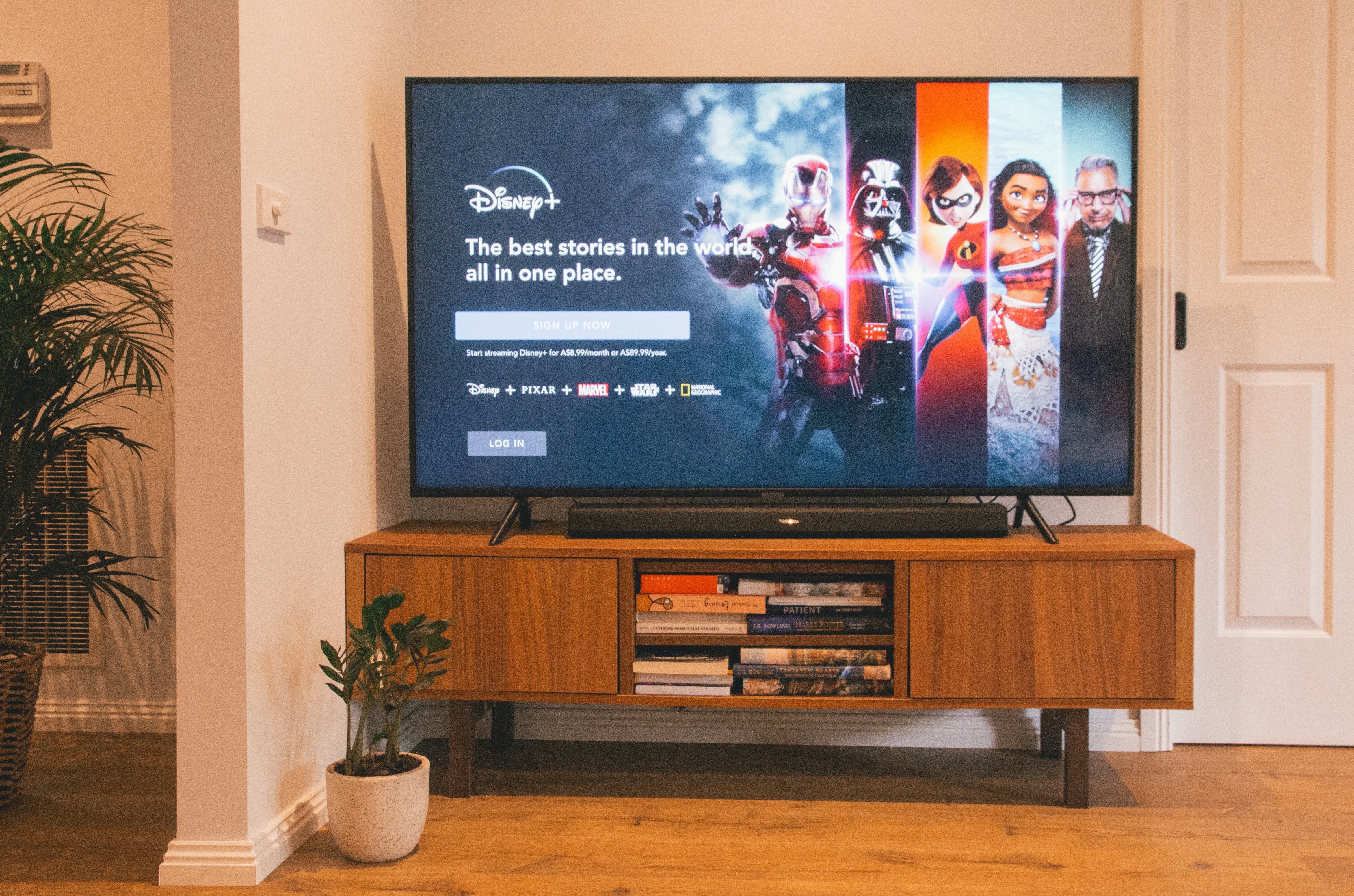
IBO Player Firestick IPTV streaming setup with VocoTV
Test IBO Player on Firestick with live TV, sports, VOD, guide data, and channel switching before choosing a long plan.

Common IBO Player Firestick Problems and Fixes

Downloader code 528993 does not work

  • Check that you typed 528993 correctly.
  • Restart Downloader and try again.
  • Use the direct link: http://aftv.news/407498.
  • Restart your Firestick if the download fails.

IBO Player will not install

  • Enable Install Unknown Apps for Downloader.
  • Free storage on your Firestick.
  • Restart the device.
  • Download the app again.

MAC Address or Device Key is wrong

  • Open IBO Player again.
  • Copy the MAC Address exactly.
  • Copy the Device Key exactly.
  • Do not confuse letters and numbers.
  • Enter both on https://iboplayer.pro.

Login says invalid

  • Re-type your private VocoTV username and password.
  • Remove extra spaces before or after the login details.
  • Confirm your trial or subscription is active.
  • Use the correct login method.
  • Check your account through the VocoTV account login.

IBO Player is buffering

More Useful VocoTV Links

Helpful External Links

IBO Player Firestick FAQ

What is IBO Player Firestick?

IBO Player Firestick is the setup process for installing IBO Player on Amazon Firestick or Fire TV and activating IPTV using MAC Address and Device Key.

What is the IBO Player Downloader code?

The IBO Player Downloader code is 528993.

What is the IBO Player download link?

The IBO Player download link is http://aftv.news/407498.

Where do I activate IBO Player?

You can activate IBO Player at https://iboplayer.pro using your MAC Address and Device Key.

Can I use VocoTV username and password with IBO Player?

Yes. Use your private VocoTV username and password when activating your playlist through IBO Player.

Does IBO Player include channels?

No. IBO Player is only an IPTV player. You need private IPTV service details from VocoTV after trial or subscription activation.

What is the best backup app if IBO Player does not work?

The best backup app is VOCO TV MATE using Downloader code 2695252. Another backup option is VocoTV OTT App using code 274303.

Should I publish my IPTV username, password, M3U, or server URL?

No. Never publish private IPTV usernames, passwords, M3U playlist links, or server URLs on public pages, screenshots, forums, or social media.

Final Word

IBO Player Firestick is one of the best IPTV player setup methods for VocoTV users because it uses MAC Address and Device Key activation. Install IBO Player with Downloader code 528993, activate it through https://iboplayer.pro, then use your private VocoTV username and password.

If IBO Player does not fit your device or style, use VOCO TV MATE with Downloader code 2695252, or use VocoTV OTT App with Downloader code 274303. Start with the VocoTV IPTV free trial, test the setup, then compare the VocoTV IPTV subscription plans when everything works well.
IPTV-Players-CI
broadband for iptvOnline IPTVUSA IPTVvoco tv iptv tips newsvoco tv iptv tutorialsvoco tv iptv updatesvocotv 2024vocotv iptv streaming

Best IPTV Players for FireStick (2026)

In this post, you will find the list of the Best IPTV Players for Fire Stick, New FireStick 4K, New FireStick 4K Max, Fire TV. 

Best IPTV Players

Best IPTV Player for Firestick 2026 – VocoTV Mate, IBO Player, VocoTV OTT App & More

If you are looking for the best IPTV player for Firestick in 2026, this guide gives you the best VocoTV setup methods for Firestick, Fire TV, Android TV Box, Android TV, Google TV, Shield TV, Android mobile, tablet, and other Android-based devices.

The easiest option for most users is VOCO TV MATE App. After that, IBO Player and VocoTV OTT App are strong backup methods. Advanced users can also use TiviMate, IPTV Smarters-style apps, XCIPTV-style apps, Kodi, VLC, and other IPTV players depending on the device and login format.

Start here: VocoTV IPTV Free Trial

Best IPTV player for Firestick with VocoTV Mate IBO Player and OTT App
Use VOCO TV MATE first, then try IBO Player, VocoTV OTT App, TiviMate, or other IPTV players if needed.

Quick VocoTV IPTV Links

Best IPTV Players for Firestick 2026

There are many IPTV players available for Firestick, but not every app is easy for beginners. Some apps need direct username and password login, some use MAC address and Device Key activation, and others need Xtream Codes or M3U playlist details.

For VocoTV users, this is the best order:

  1. VOCO TV MATE App – best first method and easiest VocoTV login.
  2. IBO Player App – recommended backup method using MAC Address and Device Key.
  3. VocoTV OTT App – alternative Android app for Firestick and Android TV users.
  4. TiviMate IPTV Player – best advanced IPTV player for users who want a TV-guide style layout.
  5. IPTV Smarters-style apps – simple option for Xtream Codes or M3U login.
  6. XCIPTV / Purple Player-style apps – backup Android IPTV player options.
  7. Kodi – advanced media center option.
  8. VLC Media Player – best for computer testing, not daily Firestick use.

Before Installing IPTV on Firestick

Before installing any IPTV player, prepare your Firestick correctly. Most IPTV apps are installed using the Downloader app.

  • Use a Firestick, Fire TV, Android TV Box, Android TV, Google TV, Shield TV, Android mobile, or tablet.
  • Connect to stable Wi-Fi or Ethernet.
  • Install the Downloader app from the Amazon Appstore.
  • Allow Downloader to install apps from unknown sources if Firestick asks.
  • Keep your private VocoTV username and password ready.
  • Do not publish your username, password, M3U link, or server URL online.

Helpful external links: Amazon Fire TV, Amazon Fire TV Help Center, Google TV, and Android TV.


Method 1: VOCO TV MATE App – Best IPTV Player for Firestick

VOCO TV MATE is the best first method for VocoTV users. It is simple, fast, and works on Android-based devices including Firestick, Android TV Box, Android TV, mobile, tablet, Shield TV, Google TV, and more.

VOCO TV MATE App Login Details

  • Works on: All Android devices including Firestick, Android TV Box, Android TV, mobile, tablet, Shield TV, Google TV, and more.
  • Download Link #1: http://aftv.news/2695252
  • Code for Downloader App: 2695252
  • Username: use your private VocoTV username sent after activation.
  • Password: use your private VocoTV password sent after activation.

How to Install VOCO TV MATE on Firestick

  1. Turn on your Firestick.
  2. Go to the Search icon.
  3. Search for Downloader.
  4. Install the Downloader app.
  5. Open Downloader.
  6. Enter code 2695252.
  7. Press Go.
  8. Download and install the VOCO TV MATE App.
  9. Open VOCO TV MATE.
  10. Enter your private VocoTV username and password.
  11. Wait for live TV, movies, series, sports, and categories to load.

This is the easiest setup because users do not need to manually paste M3U links or configure advanced settings.


Method 2: IBO Player App – Recommended by VocoTV

IBO Player is another strong IPTV player for Firestick. It uses MAC Address and Device Key activation, which makes it useful for users who prefer managing the playlist from a phone or computer.

IBO Player App Setup Details

How to Install IBO Player on Firestick

  1. Go to the Search icon on your Firestick.
  2. Install the Downloader app.
  3. Open Downloader.
  4. Enter code 528993.
  5. Or visit http://aftv.news/407498.
  6. Download and install the IBO Player App.
  7. Open the app.
  8. Write down your MAC Address and Device Key.
  9. Visit https://iboplayer.pro on your phone or computer.
  10. Click Activate.
  11. Enter your MAC Address and Device Key.
  12. Use your private VocoTV username and password.
  13. Save the playlist.
  14. Return to Firestick and restart IBO Player.

IBO Player is a great second option if you want activation using MAC Address and Device Key.


Method 3: VocoTV OTT App – Alternative Android App

VocoTV OTT App is a good alternative for Android-based devices. Use this method if you want another app option after VOCO TV MATE and IBO Player.

VocoTV OTT App Setup Details

  • Works on: Firestick, Android TV Box, Android TV, Google TV, Shield TV, Android mobile, and tablet.
  • Downloader Code: 274303
  • Download Link: http://aftv.news/274303
  • Login: use your private VocoTV app username and password.

How to Install VocoTV OTT App

  1. Reopen Downloader.
  2. Enter code 274303.
  3. Or visit http://aftv.news/274303.
  4. Download the VocoTV OTT App.
  5. Install the app.
  6. Open the app.
  7. Enter your private VocoTV username and password.
  8. Test live TV, VOD, sports, and categories.
VocoTV Firestick IPTV player setup with multiple apps
Use multiple IPTV player methods so your Firestick always has a working setup option.

Method 4: TiviMate IPTV Player – Best Advanced Firestick IPTV Player

TiviMate is one of the best IPTV players for advanced Firestick and Android TV users. It gives a clean TV-guide style layout, favorites, channel groups, playlist management, and EPG options.

TiviMate is only a player. It does not include channels by itself. You need private IPTV service details from VocoTV after your trial or subscription is activated.

Official website: TiviMate

How to Use VocoTV with TiviMate

  1. Install TiviMate on Firestick or Android TV.
  2. Open TiviMate.
  3. Select Add Playlist.
  4. Choose Xtream Codes if your account supports it.
  5. Enter playlist name: VocoTV.
  6. Enter your private server URL, username, and password inside the app only.
  7. Or choose M3U Playlist and paste your private M3U URL inside the app only.
  8. Wait for live TV, VOD, and EPG to load.

Use TiviMate if you want a premium IPTV player experience and better organization.


Method 5: IPTV Smarters-Style Apps

IPTV Smarters-style apps are popular because the login screen is simple. These apps usually support Xtream Codes login and M3U playlist setup.

  1. Install a supported IPTV Smarters-style app.
  2. Open the app.
  3. Select Xtream Codes or M3U login.
  4. Enter the name as VocoTV.
  5. Enter your private username, password, and server URL only inside the app.
  6. Wait for channels, VOD, and guide data to load.

This method is good for beginners who prefer a simple login layout.


Method 6: XCIPTV, Purple Player, or Similar Android IPTV Players

XCIPTV-style players and Purple Player-style apps are also used by IPTV customers on Android devices. These apps are useful when another player does not work well on your device.

  1. Install the IPTV player on your Android-based device.
  2. Open the app.
  3. Choose the login method supported by your VocoTV account.
  4. Enter private login details only inside the app.
  5. Test live TV, movies, series, and guide data.

Keep this method as a backup if VOCO TV MATE, IBO Player, or VocoTV OTT App does not match your preferred layout.


Method 7: Kodi with PVR IPTV Simple Client

Kodi is a media center that can also be used for IPTV through PVR IPTV Simple Client. This method is more advanced, but it works well for users who already use Kodi.

Official website: Kodi

  1. Install Kodi on your Firestick or Android TV device.
  2. Open Kodi.
  3. Go to add-ons.
  4. Enable PVR IPTV Simple Client.
  5. Add your private M3U playlist URL if your account supports M3U.
  6. Add EPG URL only if provided privately.
  7. Save settings and restart Kodi.

Kodi is best for advanced users who want IPTV inside a full media center setup.


Method 8: VLC Media Player for Windows and Mac Testing

VLC Media Player is not the best Firestick IPTV player, but it is useful for testing private M3U playlist access on Windows, Mac, or Linux.

Official website: VLC Media Player

  1. Install VLC on your computer.
  2. Open VLC.
  3. Go to Media.
  4. Select Open Network Stream.
  5. Paste your private M3U playlist URL only inside VLC.
  6. Click Play.

Use VLC for quick testing only. For daily Firestick use, VOCO TV MATE, IBO Player, VocoTV OTT App, or TiviMate is better.

Which IPTV Player Should You Choose?

  • Best first option: VOCO TV MATE App
  • Best VocoTV recommended backup: IBO Player
  • Best alternative Android app: VocoTV OTT App
  • Best advanced Firestick player: TiviMate
  • Best beginner third-party layout: IPTV Smarters-style apps
  • Best advanced media center: Kodi
  • Best desktop testing: VLC Media Player

How to Test IPTV After Installing a Player

After installing any IPTV player, test the service correctly before judging it. Do not open only one channel. Test different sections and different times.

  • Test live TV categories.
  • Test sports channels during busy hours.
  • Open movies and series from VOD.
  • Check channel switching speed.
  • Check EPG guide loading.
  • Test audio sync.
  • Restart the app and confirm the service reloads correctly.

New users should start with the VocoTV IPTV free trial. After testing, compare the VocoTV IPTV subscription plans.

Firestick IPTV player setup streaming apps and VocoTV installation guide
Testing different IPTV players helps Firestick users find the best app for their device, internet connection, and viewing style.

Common Firestick IPTV Player Problems and Fixes

Downloader code does not work

  • Check that the code is typed correctly.
  • Use 2695252 for VOCO TV MATE.
  • Use 528993 for IBO Player.
  • Use 274303 for VocoTV OTT App.
  • Restart Downloader and try again.
  • Check your internet connection.

App will not install

  • Allow Downloader permission to install unknown apps.
  • Free storage on your Firestick.
  • Restart Firestick and try again.
  • Download the APK again.

Login says invalid

  • Type your username and password manually.
  • Remove extra spaces before and after the details.
  • Make sure your trial or subscription is active.
  • Use the correct app login method.
  • Check your account through the VocoTV account login.

Buffering or freezing

IBO Player activation is not working

  • Check the MAC Address carefully.
  • Check the Device Key carefully.
  • Use https://iboplayer.pro on a phone or computer.
  • Restart IBO Player after activation.
  • Confirm your VocoTV account details are active.

More Useful VocoTV Links

Helpful External Links

Best IPTV Player Firestick FAQ

What is the best IPTV player for Firestick in 2026?

For VocoTV users, the best IPTV player for Firestick is VOCO TV MATE because it is direct, simple, and uses Downloader code 2695252. IBO Player and VocoTV OTT App are also strong backup options.

What is the VOCO TV MATE Downloader code?

The VOCO TV MATE Downloader code is 2695252.

What is the IBO Player Downloader code?

The IBO Player Downloader code is 528993. The download link is http://aftv.news/407498.

What is the VocoTV OTT App Downloader code?

The VocoTV OTT App Downloader code is 274303. The download link is http://aftv.news/274303.

Can I use TiviMate with VocoTV?

Yes, you can use TiviMate with VocoTV if your account supports Xtream Codes or M3U setup. Enter your private login details only inside the app.

Does an IPTV player include channels?

No. Most IPTV players do not include channels by themselves. They need private IPTV service details from a provider such as VocoTV after trial or subscription activation.

Should I publish my IPTV username, password, M3U, or server URL?

No. Never publish private IPTV usernames, passwords, M3U playlist links, or server URLs on public pages, screenshots, forums, or social media.

What should I do if IPTV buffers on Firestick?

Restart your router and Firestick, use Ethernet if possible, clear app cache, close background apps, test your internet speed, and use the VocoTV troubleshooting guide.

Final Word

The best IPTV player for Firestick in 2026 depends on your setup, but for VocoTV users the best order is clear: start with VOCO TV MATE App using Downloader code 2695252, then try IBO Player using code 528993, then try VocoTV OTT App using code 274303.

Advanced users can also use TiviMate, IPTV Smarters-style apps, XCIPTV-style apps, Kodi, or VLC depending on the login format. Start with the VocoTV IPTV free trial, install the best app for your device, test live TV and VOD, then compare the VocoTV IPTV subscription plans when the setup works well.

iptv-smarters-troypoint.jpg
Online IPTVUSA IPTVvoco tv iptv tutorialsvocotv 2024vocotv iptv streaming

IPTV Smarters Pro Firestick 2026 – Install & Setup VocoTV Guide

How To Install IPTV Smarters Pro On Amazon Firestick – Full Tutorial (2024)

IPTV Smarters Pro Firestick 2026 – Full Install & Setup Guide for VocoTV Users

IPTV Smarters Pro Firestick setup is one of the most searched IPTV tutorials for Amazon Fire TV users in 2026. Firestick is popular because it is small, affordable, easy to connect to any TV, and works with IPTV apps through the Downloader app. IPTV Smarters Pro is also popular because many IPTV users understand the Xtream Codes and M3U login screen.

This guide shows how to install IPTV Smarters Pro on Firestick, how to enable Downloader permissions, how to log in with VocoTV private details, how to move the app to your home screen, how to fix common problems, and which alternative VocoTV apps may work better if IPTV Smarters Pro does not run smoothly on your device.

Use this tutorial if you are searching for IPTV Smarters Pro Firestick, install IPTV Smarters Pro on Firestick, IPTV Smarters Firestick 2026, VocoTV Firestick setup, Xtream Codes Firestick, or IPTV app Firestick.

Important: IPTV Smarters Pro is only a media player. It does not provide TV channels, movies, sports, VOD or subscription content by itself. To use it with VocoTV, you need your private VocoTV username, password and server details after your trial or subscription is activated. Never publish your login details, M3U link, server URL or portal URL online.

IPTV Smarters Pro Firestick 2026 VocoTV install and setup guide
IPTV Smarters Pro on Firestick works best when Downloader is installed correctly, app permissions are enabled, and private VocoTV details are entered safely.

Quick Setup Summary

If you want the fast version, this is the full Firestick path:

  1. Install the Downloader app on Firestick.
  2. Enable Install Unknown Apps for Downloader.
  3. Open Downloader and install IPTV Smarters Pro from a trusted source.
  4. Open IPTV Smarters Pro.
  5. Choose TV layout if asked.
  6. Select Login with Xtream Codes API or Load Your Playlist / File URL.
  7. Enter your private VocoTV details only inside the app.
  8. Wait for live TV, movies, series, sports and guide data to load.
  9. Move the app to the front of your Firestick apps list.
  10. Test live TV, VOD, EPG, sports and app restart before choosing a longer plan.

New users should start with VocoTV IPTV Free Trial. If you already tested the service, compare options on VocoTV IPTV Subscription Plans.

Useful VocoTV Links for Firestick Users

Use these VocoTV pages for trial, plans, installation, troubleshooting, account help and general IPTV information.

What Is IPTV Smarters Pro?

IPTV Smarters Pro is an IPTV player app. It is used to load IPTV content from a provider through login methods such as Xtream Codes API or M3U playlist URL. The app itself does not create, sell, host or include IPTV channels. It only plays content that the user adds through legal provider details.

This difference matters. If you install IPTV Smarters Pro but do not have a provider login, the app will not magically show channels. You need active VocoTV access or another valid IPTV provider account before setup.

External reference: IPTV Smarters official website.

Why Use IPTV Smarters Pro on Firestick?

Firestick and IPTV Smarters Pro are a common combination because Firestick connects directly to your TV and IPTV Smarters Pro gives a familiar IPTV layout. It can support live TV, movies, series, categories, EPG, multiple playlists and provider login depending on the version you install.

Reasons users choose this setup:

  • Firestick is easy to connect to almost any TV.
  • Downloader makes app installation simple.
  • IPTV Smarters Pro supports Xtream Codes and M3U-style login.
  • The app layout is easy for many users to understand.
  • It can organize live TV, movies, series and categories.
  • It works as a backup player if another IPTV app has issues.

For Fire TV device information, visit Amazon Fire TV and Amazon Fire TV Help.

Before You Install: What You Need

Do this before opening Downloader. It saves time and prevents most setup errors.

Setup Checklist

  • Amazon Firestick, Fire TV Stick 4K, Fire TV Stick 4K Max or Fire TV Cube.
  • Stable internet connection.
  • Downloader app installed.
  • Install Unknown Apps permission enabled for Downloader.
  • Active VocoTV free trial or subscription.
  • Private VocoTV username and password.
  • Private server URL or M3U URL if your setup requires it.
  • Enough Firestick storage for the app.
  • Remote control ready for typing login details.

Method 1: Install IPTV Smarters Pro on Firestick with Downloader

This is the main tutorial for users who specifically want IPTV Smarters Pro on Firestick.

Step 1: Install Downloader

  1. Turn on your Firestick.
  2. From the home screen, go to Find or Search.
  3. Type Downloader.
  4. Select the Downloader app.
  5. Click Get or Download.
  6. Wait until Downloader is installed.
  7. Open Downloader once, accept the basic prompt if shown, then return to the Firestick home screen.

Step 2: Enable Install Unknown Apps

  1. Go to Settings on your Firestick.
  2. Open My Fire TV.
  3. Select Developer Options.
  4. Open Install Unknown Apps.
  5. Find Downloader.
  6. Switch Downloader to ON.

If Developer Options Are Hidden

  1. Go to Settings.
  2. Open My Fire TV.
  3. Open About.
  4. Select your Fire TV device name several times until developer mode is enabled.
  5. Go back to My Fire TV.
  6. Open Developer Options.
  7. Turn on Install Unknown Apps for Downloader.

Step 3: Download IPTV Smarters Pro

  1. Open the Downloader app.
  2. Click the URL box.
  3. Enter the IPTV Smarters Pro download source you trust.
  4. Wait for the APK file to download.
  5. Click Install.
  6. After installation, click Done.
  7. When Downloader asks to delete the APK file, click Delete to free Firestick storage.

Safety note: Only install APK files from sources you trust. Do not install random APKs from unknown websites, fake Smarters clones or pages that ask for your VocoTV password outside the app.

Step 4: Move IPTV Smarters Pro to the Home Screen

  1. Hold the Home button on your Firestick remote.
  2. Select Apps.
  3. Find IPTV Smarters Pro.
  4. Press the menu button on the remote.
  5. Select Move.
  6. Place the app near the top of your list.
VocoTV Firestick IPTV app setup with IPTV Smarters Pro Downloader and Xtream Codes
After installing IPTV Smarters Pro, move it to the front of your Firestick apps so it is easy to open every day.

How to Set Up IPTV Smarters Pro with VocoTV

After the app is installed, you need to add your VocoTV details. The exact screen may vary by app version, but the main login options are usually similar.

Option A: Login with Xtream Codes API

This is the cleanest login method when your VocoTV details support Xtream Codes style login.

  1. Open IPTV Smarters Pro.
  2. Select TV layout if the app asks for layout type.
  3. Choose Login with Xtream Codes API.
  4. In Any Name, type VocoTV.
  5. Enter your private VocoTV username.
  6. Enter your private VocoTV password.
  7. Enter your private server URL if required.
  8. Click Add User.
  9. Wait for live TV, movies, series and EPG data to load.

Option B: Login with M3U URL

Use this only if your VocoTV account gives you a private M3U playlist link.

  1. Open IPTV Smarters Pro.
  2. Choose Load Your Playlist or File URL.
  3. Enter playlist name as VocoTV.
  4. Paste your private M3U URL.
  5. Save the playlist.
  6. Wait for channels and categories to load.

Never share your M3U URL publicly. A private M3U link can expose your account access if someone else copies it.

Recommended VocoTV Alternative Apps for Firestick

IPTV Smarters Pro is useful, but it is not the only option. If Smarters is slow, missing features, unavailable, or not working well on your Firestick, test these VocoTV-compatible options.

Method 2: VOCO TV MATE App

VOCO TV MATE App is a strong first-choice alternative for VocoTV users because it is made for simple VocoTV login and works on many Android-based devices.

VOCO TV MATE Details

  • Works on: Firestick, Android TV Box, Android TV, mobile, tablet, Shield TV, Google TV and more.
  • Download Link: http://aftv.news/2695252
  • Downloader Code: 2695252
  • Login: use your private VocoTV username and password.
  1. Open Downloader.
  2. Enter code 2695252.
  3. Download VOCO TV MATE.
  4. Install the app.
  5. Open it and login with private VocoTV details.
  6. Test live TV, VOD, sports and guide loading.

Method 3: IBO Player App

IBO Player is recommended for users who prefer activation with MAC Address and Device Key. This can be easier than typing everything on the Firestick remote.

IBO Player Details

  1. Install Downloader on Firestick.
  2. Open Downloader and enter 528993.
  3. Install IBO Player.
  4. Open the app.
  5. Write down the MAC Address and Device Key.
  6. Open https://iboplayer.pro on your phone or computer.
  7. Click Activate.
  8. Enter MAC Address and Device Key.
  9. Add your private VocoTV username and password.
  10. Save and restart IBO Player on Firestick.

Method 4: VocoTV OTT App

VocoTV OTT App is another Android-based option for Firestick users who want a backup VocoTV app.

VocoTV OTT App Details

  1. Open Downloader.
  2. Enter code 274303.
  3. Install VocoTV OTT App.
  4. Open the app.
  5. Login with private VocoTV details.
  6. Test channels, VOD and sports.

Method 5: TiviMate for Advanced Firestick Users

TiviMate is one of the best IPTV players for advanced Firestick and Android TV users. It is only a player and does not include channels. Use it only with your private VocoTV details if your account supports Xtream Codes or M3U setup.

  1. Install TiviMate on Firestick.
  2. Open the app.
  3. Select Add Playlist.
  4. Choose Xtream Codes or M3U if your VocoTV account supports it.
  5. Enter playlist name as VocoTV.
  6. Add private login details only inside the app.
  7. Wait for channels and EPG to load.

Which App Should You Use?

AppBest ForLogin Style
IPTV Smarters ProUsers who want familiar Xtream Codes or M3U setupXtream Codes / M3U
VOCO TV MATEFast VocoTV login on Firestick and Android devicesPrivate VocoTV username and password
IBO PlayerUsers who like MAC Address and Device Key activationOnline activation
VocoTV OTT AppBackup VocoTV app for FirestickPrivate VocoTV app login
TiviMateAdvanced users who want TV guide and favoritesXtream Codes / M3U if supported

How to Test IPTV Smarters Pro After Setup

Do not test only one channel. Use a real Firestick test so you know if the app and VocoTV setup are stable.

  1. Open live TV categories.
  2. Switch between at least 10 channels.
  3. Open sports channels during a busy time if possible.
  4. Open movies and series through VOD.
  5. Check if EPG or TV guide loads.
  6. Restart IPTV Smarters Pro and confirm the account loads again.
  7. Test with Wi-Fi and Ethernet adapter if available.
  8. Try VOCO TV MATE or IBO Player if Smarters buffers too much.

Common IPTV Smarters Pro Firestick Problems and Fixes

Problem: IPTV Smarters Pro will not install

  • Check if Downloader has Install Unknown Apps permission.
  • Restart Firestick.
  • Check Firestick storage.
  • Delete old APK files inside Downloader.
  • Use a trusted download source.

Problem: App opens but login fails

  • Type the username manually.
  • Type the password manually.
  • Remove spaces before and after each field.
  • Check uppercase and lowercase letters.
  • Make sure the VocoTV trial or subscription is active.
  • Confirm that you are using the correct server URL if Xtream Codes is required.
  • Use the VocoTV Account Guide if you need account help.

Problem: Channels load but buffer

  • Restart your router.
  • Restart Firestick.
  • Move Firestick closer to the router.
  • Use 5 GHz Wi-Fi if possible.
  • Use Ethernet adapter if available.
  • Clear IPTV Smarters Pro cache.
  • Test another app like VOCO TV MATE, IBO Player or TiviMate.
  • Use VocoTV Troubleshooting Guide.

Problem: EPG does not show

  • Wait a few minutes after first login.
  • Refresh TV guide inside the app if available.
  • Restart the app.
  • Check if your account includes EPG data.
  • Try another player if EPG still does not load.

Problem: Audio and video are not synced

  • Stop and reopen the channel.
  • Restart the app.
  • Try an external player option if available.
  • Test another stream quality if offered.
  • Restart Firestick if the issue affects many channels.
Firestick IPTV troubleshooting router WiFi VocoTV IPTV Smarters Pro
Most Firestick IPTV problems come from Wi-Fi, app cache, wrong login details, weak device storage or using the wrong player for your setup.

Internet Tips for IPTV Smarters Pro on Firestick

IPTV Smarters Pro needs stable internet. Fast speed tests help, but stability matters more than one high number.

  • Use 5 GHz Wi-Fi if your Firestick is near the router.
  • Use Ethernet adapter if you want stronger stability.
  • Restart router before testing IPTV.
  • Keep Firestick storage clean.
  • Close unused apps in the background.
  • Clear IPTV Smarters Pro cache if the app becomes slow.
  • Test speed with Speedtest by Ookla and Fast.com.

Security Rules for IPTV Smarters Pro Users

Because IPTV Smarters Pro uses provider login details, users must protect private account data.

  • Never post VocoTV username or password.
  • Never post M3U playlist URL.
  • Never post server URL or portal URL publicly.
  • Never send screenshots that show account data.
  • Do not install fake IPTV Smarters clone apps.
  • Do not enter VocoTV login details on random websites.
  • Use trusted apps only.
  • Contact support if your account seems compromised.

When IPTV Smarters Pro Is Not the Best Choice

IPTV Smarters Pro can work well, but it is not always the best app for every Firestick. Try another player if you notice slow menus, missing EPG, login errors, freezing, audio sync issues or poor remote control navigation.

For many VocoTV users, VOCO TV MATE is easier for direct login. IBO Player is useful if you prefer MAC Address activation. TiviMate is better for advanced guide and favorite management. The best app is the one that works smoothly on your Firestick, not the one with the most famous name.

IPTV Smarters Pro Firestick FAQ

Does IPTV Smarters Pro include channels?

No. IPTV Smarters Pro is only a media player. You need private VocoTV or IPTV provider details to load channels, movies, series or VOD.

Can I use VocoTV with IPTV Smarters Pro?

Yes, if your VocoTV account supports the login method required by IPTV Smarters Pro, such as Xtream Codes API or M3U URL.

What should I type in Any Name?

You can type VocoTV. This is only a playlist name inside the app.

What login method should I choose?

Use Login with Xtream Codes API if you have server URL, username and password. Use M3U only if your VocoTV account provides a private M3U URL.

Why does IPTV Smarters Pro say invalid details?

The most common reasons are wrong username, wrong password, extra spaces, wrong server URL, expired trial, inactive subscription or using the wrong login method.

Why is IPTV Smarters Pro buffering on Firestick?

Buffering can come from weak Wi-Fi, slow router, full app cache, low Firestick storage, ISP routing, VPN speed, peak traffic or app-specific issues.

Is VOCO TV MATE better than IPTV Smarters Pro?

For many VocoTV users, VOCO TV MATE is easier because it is a direct VocoTV app login method. IPTV Smarters Pro is better if you specifically want Xtream Codes or M3U player style.

Can I use IBO Player instead?

Yes. IBO Player is a good option if you want MAC Address and Device Key activation through iboplayer.pro.

Should I delete the APK after installation?

Yes. After installing the app, delete the APK file inside Downloader to free Firestick storage.

Should I share my IPTV Smarters login?

No. Never share usernames, passwords, M3U links, server URLs or screenshots that show private VocoTV details.

More VocoTV Pages

External Resources

Final Word

IPTV Smarters Pro Firestick setup is useful when you want a familiar IPTV player with Xtream Codes or M3U login. Install Downloader, enable permissions, install the app from a trusted source, enter private VocoTV details safely, then test live TV, VOD, sports, EPG and app restart.

If IPTV Smarters Pro does not feel smooth on your Firestick, do not waste time fighting one app. Test VOCO TV MATE with Downloader code 2695252, IBO Player with code 528993, VocoTV OTT App with code 274303, or TiviMate for advanced users. Start with the VocoTV IPTV Free Trial, follow the Firestick installation guide, and choose a plan from VocoTV IPTV Subscription Plans only after your setup works properly.

Online IPTVvocotv iptv streaming

IPTV Firestick 2026 – Install VocoTV on Amazon Fire TV Stick

Whether you are building an enterprise web portal or a state-of-the-art website, you always need the right modern tools. Well-built and maintained PHP frameworks provide those tools in abundance…