
vocotv iptv streaming
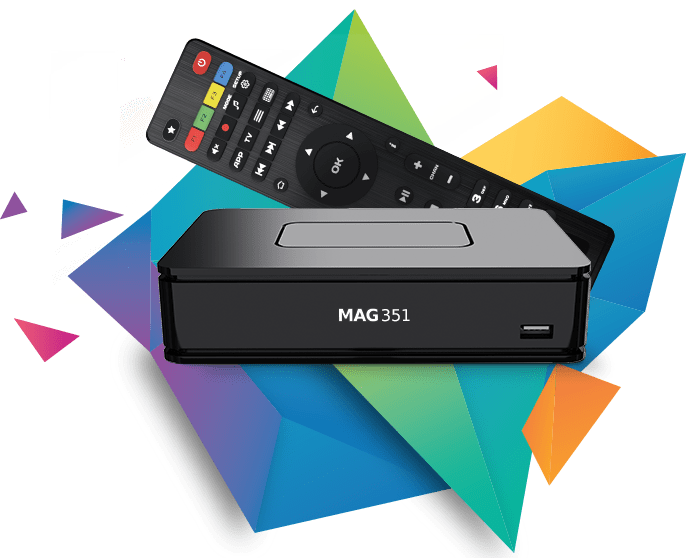
MAG IPTV 2026 – How to Install VocoTV on MAG Box with Portal URL, MAC Address and NTP Server
MAG IPTV setup is different from Firestick, Android TV, Smart TV, iPhone or Apple TV. A MAG box is normally configured through its built-in portal system. Instead of installing normal apps first, you usually enter a Portal URL inside the MAG box settings and activate the device with its MAC address.
This VocoTV guide explains how to install MAG IPTV on MAG 250, MAG 254, MAG 256, MAG 322, MAG 324, MAG 351, MAG 420, MAG 424, MAG 520 and similar MAG-style set-top boxes. It covers Portal 1 setup, Portal 2 setup, MAC address activation, NTP server, Ethernet, Wi-Fi, restart portal, STB blocked errors, portal loading problems, EPG issues, buffering fixes and safe account handling.
The focus keyphrase for this article is MAG IPTV. This is a real device tutorial built around MAG portal setup, not a generic IPTV article and not an Android-only app tutorial.
Important: never publish your VocoTV portal URL, MAC address, username, password, M3U link, server URL or Xtream Codes details. MAG IPTV access is private. Use VocoTV details only inside your own MAG device after your free trial or subscription is active.

Best VocoTV Setup Method by MAG Device
MAG devices are built for portal-based IPTV. The correct setup depends on the model and firmware. Older MAG boxes usually use the classic embedded portal menu. Some newer MAG-style or Android-based boxes may include different menus or app support.
| Device | Best method | What VocoTV needs | Best for |
|---|---|---|---|
| MAG 250 / MAG 254 | Portal URL setup | MAC address and VocoTV portal URL | Classic MAG IPTV setup and simple live TV use |
| MAG 256 | Portal URL setup | MAC address, portal URL and stable internet | Faster classic MAG performance and HD streams |
| MAG 322 / MAG 324 | Portal 1 URL setup | Portal URL and MAC activation if required | Dedicated IPTV box with simple remote control |
| MAG 351 / 420 / 424 | Portal setup or model-specific portal menu | Portal URL, MAC address and correct network settings | Newer MAG IPTV viewing and stronger hardware |
| MAG 520 / newer MAG-style device | Portal setup or provider-supported mode | Portal URL, device ID or MAC depending on firmware | Newer IPTV portal experience |
| Android-based MAG-style box | Portal first, Android app fallback second | VocoTV portal or VOCO TV MATE / IBO / OTT app details | Fallback setup when the box supports Android APK apps |
Live VocoTV Links for MAG IPTV Setup
Use these live VocoTV pages for MAG IPTV setup, free trial, subscription, support, account access and policies. These are live VocoTV links, not guessed links.
- VocoTV Official Website
- VocoTV IPTV Installation Guide
- VocoTV IPTV Free Trial
- VocoTV IPTV Subscription Plans
- VocoTV IPTV FAQ
- VocoTV Troubleshooting Guide
- VocoTV IPTV Reseller Program
- VocoTV IPTV Affiliate Program
- VocoTV Login
- VocoTV Sign Up
- VocoTV Refund Policy
- VocoTV Privacy Policy
What You Need Before Installing MAG IPTV
Before you enter any portal settings, prepare the correct details. Most MAG IPTV problems come from wrong portal URL, wrong MAC address, inactive account, bad Wi-Fi, wrong NTP server or skipped reboot.
- A MAG box connected to your TV by HDMI.
- Stable internet connection, preferably Ethernet.
- MAG remote control with working Setup, OK, Back, Exit and arrow buttons.
- Your VocoTV portal URL from your VocoTV setup email or support.
- Your MAG box MAC address if VocoTV needs MAC activation.
- Your VocoTV free trial or subscription active.
- NTP server value such as pool.ntp.org if the device needs time sync.
If you do not have VocoTV access yet, start with VocoTV IPTV Free Trial. If you already tested and want a package, use VocoTV IPTV Subscription Plans.
How to Find the MAG MAC Address
The MAC address is important because many MAG IPTV setups are activated by device MAC. VocoTV may need this MAC address before the portal loads channels.
You can usually find the MAG MAC address in one of these places:
- Sticker on the bottom or back of the MAG box.
- System Information screen inside the MAG settings.
- Network settings screen.
- Portal error screen, depending on firmware.
Write the MAC address exactly. Do not guess it. Do not confuse Ethernet MAC with Wi-Fi MAC if VocoTV support asks for a specific one. If the portal says STB blocked, MAC mismatch is one of the first things to check.
Method 1: Install MAG IPTV with Portal 1 URL
This is the main VocoTV method for MAG IPTV. Use it on MAG 250, MAG 254, MAG 256, MAG 322, MAG 324 and many classic MAG devices.
Step 1: Open Settings
- Turn on your MAG box.
- Wait for the main portal screen or home screen to load.
- Press SETUP, SET or the settings button on your remote.
- If the portal is already loaded, use the menu option to go back to the inner portal or system settings.
Some MAG boxes show a black embedded portal screen with icons. Others show a provider portal. The goal is the same: reach the internal System Settings area.

Step 2: Open System Settings and Servers
- Select System Settings.
- Press OK.
- Select Servers.
- Press OK.
The Servers menu is where MAG IPTV portal settings are stored. It normally includes General, Portals and sometimes update server options.
Step 3: Open Portals
- Inside Servers, select Portals.
- Press OK.
- Find Portal 1 name.
- Find Portal 1 URL.
Portal 1 is normally the main IPTV service slot. Portal 2 can be used later if the device supports a second provider profile, but for VocoTV first setup, use Portal 1.
Step 4: Enter Portal 1 Name
- Select Portal 1 name.
- Enter VocoTV.
- Use the on-screen keyboard if needed.
- Press OK to save the name field.
The portal name is only a label. It can be VocoTV, Voco IPTV, IPTV or any name you recognize. For SEO and user clarity, use VocoTV.
Step 5: Enter Portal 1 URL
- Select Portal 1 URL.
- Enter the VocoTV portal URL exactly as supplied by VocoTV.
- Keep the correct http:// or https:// prefix.
- Keep any port number if VocoTV provides one.
- Do not add extra spaces before or after the URL.
- Do not replace dots, slashes, numbers or capital letters.
- Press OK to save.
Do not invent the portal URL. Use the exact private portal URL from VocoTV setup email or support. If the URL is wrong by one character, MAG IPTV will fail to load.

Step 6: Save and Exit
- After entering Portal 1 name and Portal 1 URL, press OK to save.
- Press EXIT once to go back.
- Return to the Servers menu.
- Open General to check NTP server.
Set NTP Server for MAG IPTV
NTP server is important because wrong time settings can break guide timing, portal loading, EPG display or device sync. Many MAG setup guides use pool.ntp.org as a general NTP server.
- Go to Settings.
- Open System Settings.
- Open Servers.
- Open General.
- Find NTP server.
- Enter pool.ntp.org.
- Press OK to save.
- Exit the menu.
If VocoTV support or your region requires another NTP server, use the one they provide. Otherwise, pool.ntp.org is a common safe default.

Restart Portal and Load VocoTV
After saving Portal 1 URL and NTP server, restart the portal. Do not just leave the settings screen and expect everything to update instantly.
- Press EXIT two times until you return to the main portal menu.
- Choose Restart Portal if the option appears.
- If no restart portal option appears, reboot the MAG box.
- Wait for the device to reconnect.
- The VocoTV portal should load if the portal URL and MAC activation are correct.
After the portal loads, test live TV, sports, VOD, series, EPG and category switching. Do not judge the full service from only one channel.

Method 2: Use Portal 2 for Another MAG IPTV Profile
Some MAG boxes allow more than one portal profile. If Portal 1 is already used, you may be able to use Portal 2. This is useful when you want to keep an old profile and add VocoTV as a second portal.
- Go to Settings.
- Open System Settings.
- Open Servers.
- Open Portals.
- Find Portal 2 name.
- Enter VocoTV.
- Find Portal 2 URL.
- Enter the exact VocoTV portal URL.
- Save settings.
- Restart portal or reboot the MAG box.
If your MAG firmware does not show Portal 2, use Portal 1 or contact support. Do not delete an old portal unless you are sure you do not need it.
Method 3: M3U Playlist Fallback for MAG IPTV
Most classic MAG boxes are designed around portal URL setup, not normal app playlists. However, some newer MAG-style devices or custom IPTV apps may support M3U playlist mode. Use M3U only if your device supports playlist input and VocoTV provides a private M3U URL.
- Open the playlist-supported IPTV app on the MAG-style device.
- Choose Add Playlist or M3U Playlist.
- Enter playlist name: VocoTV.
- Paste the private VocoTV M3U URL.
- Add EPG URL if VocoTV provides one separately.
- Save and wait for categories to load.
Never share your private M3U link. A private M3U URL can include account access.
Method 4: Android App Fallback for Android-Based MAG-Style Boxes
This section is only for Android-based MAG-style devices that allow APK or Android app installation. For true classic MAG boxes, use portal setup first. If your box behaves like Android TV, use the VocoTV Android apps in this order.
VOCO TV MATE App
Use VOCO TV MATE first if your MAG-style box supports Android apps.
- Best for: Android-based MAG-style boxes, Android TV Box, Android TV, Google TV and Firestick-style devices.
- Download Link: http://aftv.news/2695252
- Downloader Code: 2695252
- Login: private VocoTV username and password.
IBO Player
Use IBO Player if your Android-based box supports MAC Address and Device Key activation.
- Download Link: http://aftv.news/407498
- Downloader Code: 528993
- Activation Website: https://iboplayer.pro
VocoTV OTT App
Use VocoTV OTT App as the backup VocoTV Android app.
- Download Link: http://aftv.news/274303
- Downloader Code: 274303
- Login: private VocoTV username and password.
MAG IPTV Internet Setup: Ethernet vs Wi-Fi
MAG IPTV works best with stable internet. Speed is important, but consistency matters more. A wired Ethernet connection is usually better than Wi-Fi for live TV and sports.
- Use Ethernet if your MAG box is near the router.
- If using Wi-Fi, place the MAG box close to the router.
- Avoid weak 2.4 GHz Wi-Fi for HD and sports.
- Restart router and MAG box before testing.
- Do not run heavy downloads while testing IPTV.
- Use Speedtest and Fast.com to check internet speed.
What to Test After MAG IPTV Setup
After VocoTV loads on the MAG box, test the full experience before choosing a long plan.
- Open multiple live TV categories.
- Test sports during busy hours.
- Open movies and VOD if included in your package.
- Open series and several episodes.
- Check if EPG / TV guide loads correctly.
- Switch channels quickly to test response time.
- Restart portal and check if VocoTV loads again.
- Reboot the MAG box and check if the portal reconnects.
- Test Ethernet if Wi-Fi buffers.
MAG IPTV Troubleshooting
Portal does not load
- Check the VocoTV portal URL again.
- Make sure the URL includes the correct http:// or https:// prefix.
- Check for hidden spaces before or after the URL.
- Check if the account or trial is active.
- Confirm that VocoTV activated the correct MAC address.
- Restart portal or reboot the MAG box.
STB blocked error
- Check if your MAG MAC address was sent correctly to VocoTV.
- Make sure you did not send the wrong Wi-Fi/Ethernet MAC if support requested a specific one.
- Confirm that your trial or subscription is active.
- Ask VocoTV support to refresh or activate the MAG MAC address.
- Restart the MAG box after activation.
Wrong portal URL error
- Re-enter the portal URL manually.
- Do not change numbers, dots, port or path.
- Do not paste extra spaces.
- Use only the private VocoTV portal URL supplied to your account.
- Do not use a random portal URL from another website.
NTP or time error
- Go to Settings → System Settings → Servers → General.
- Enter pool.ntp.org in the NTP server field.
- Save with OK.
- Reboot the MAG box.
- Check time zone if EPG times are wrong.
EPG guide time is wrong
- Check NTP server.
- Check time zone setting.
- Restart portal after saving time settings.
- Wait a few minutes for guide data to reload.
- Contact VocoTV support if channels work but guide never appears.
Channels load but freeze
- Use Ethernet instead of Wi-Fi.
- Restart router and MAG box.
- Test another channel category.
- Check if other devices are using bandwidth.
- Test speed with Speedtest or Fast.com.
- Use the VocoTV Troubleshooting Guide.
Remote control does not open settings
- Try the SETUP button.
- Try the SET button.
- Try Menu or Settings button depending on your remote.
- Reboot the MAG box and try again.
- Replace remote batteries.
- Use a USB keyboard if your model supports it and you cannot access settings with the remote.
MAG IPTV Safety and Privacy
MAG portal setup uses private service information. Keep your VocoTV portal URL, MAC address and account data private.
- Never post your VocoTV portal URL publicly.
- Never share your VocoTV username or password.
- Never publish your private M3U link.
- Never post screenshots showing your portal URL or MAC address.
- Do not use leaked MAG portal lists.
- Do not clone MAC addresses.
- Do not buy random preloaded boxes from unknown sellers.
- Read the VocoTV Refund Policy.
- Read the VocoTV Privacy Policy.
MAG IPTV FAQ
What is MAG IPTV?
MAG IPTV means watching IPTV on a MAG set-top box using portal URL setup, MAC address activation and the built-in MAG portal system.
What is the best VocoTV setup method for MAG?
The best method is Portal 1 setup: System Settings → Servers → Portals → Portal 1 name → Portal 1 URL. Enter VocoTV as the name and the private VocoTV portal URL as the Portal 1 URL.
Do I need username and password on MAG?
Usually MAG portal setup uses portal URL and MAC address activation. Some setups do not require username/password on the box. Enter username/password only if VocoTV support specifically tells you to.
Where do I find the MAG MAC address?
You can usually find it on the sticker under the MAG box, in System Information, or in Network/System settings. Send the exact MAC address requested by VocoTV support.
What is Portal 1 name?
Portal 1 name is only the label for the IPTV service. Use VocoTV so you can recognize the profile.
What is Portal 1 URL?
Portal 1 URL is the private VocoTV portal address supplied to your account. Enter it exactly as given, including prefix, port and path if included.
What NTP server should I use?
A common NTP server is pool.ntp.org. Enter it in Settings → System Settings → Servers → General → NTP server, save and reboot.
Why does MAG say STB blocked?
STB blocked usually means the MAC address is not activated, the wrong MAC was sent, the account is inactive, or the portal is not approved for that device yet.
Can I use VOCO TV MATE on MAG?
Only on Android-based MAG-style boxes that support Android apps. For classic MAG boxes, use portal setup first. If Android app fallback is supported, VOCO TV MATE uses Downloader code 2695252.
Can I use IBO Player on MAG?
IBO Player is only relevant if your device supports Android apps. For classic MAG boxes, use Portal 1 URL setup instead.
Can I use M3U on MAG?
Some MAG-style devices support playlist mode, but classic MAG boxes are mainly portal-based. Use M3U only if your device and VocoTV account support it.
Should I buy a long VocoTV plan before testing MAG?
No. Start with a VocoTV free trial, activate the MAG MAC address if needed, enter the portal URL, test live TV, sport, VOD and EPG, then choose a plan after the setup works.
More VocoTV Pages
- VocoTV Home
- VocoTV IPTV Installation Guide
- VocoTV IPTV Free Trial
- VocoTV IPTV Subscription Plans
- VocoTV IPTV FAQ
- VocoTV Troubleshooting Guide
- VocoTV Reseller Program
- VocoTV Affiliate Program
- VocoTV Login
- VocoTV Sign Up
- VocoTV Refund Policy
- VocoTV Privacy Policy
External MAG Setup Resources
- Infomir Documentation: MAG System Settings
- Infomir Documentation: NTP Server and Time Settings
- Speedtest
- Fast.com
- TiviMate Official Website
- VLC Media Player
- Kodi for Android
Conclusion
MAG IPTV setup with VocoTV should be done through the correct MAG portal method first. Use System Settings, Servers, Portals, Portal 1 name and Portal 1 URL. Enter the private VocoTV portal URL exactly, activate the correct MAC address if required, set NTP server, save settings and restart portal.
The best route is simple: start with VocoTV IPTV Free Trial, send the correct MAG MAC address if VocoTV needs it, enter the VocoTV portal URL inside Portal 1 URL, test live TV, sports, VOD and EPG, fix problems with VocoTV Troubleshooting Guide, then choose a plan from VocoTV IPTV Subscription Plans.


This is a useful post for finding broken links within the website, what about links pointing outwards that are broken? I can use a free web service but wondered if this was possible.
Great tool! I am using a redirect plugin to send all my 404’s to my home page but I think it’s slacking sometimes.